
This page gathers the places where passengers meet the guide or driver, for example "Viale Vaticano — Museum Entrance" for the Vatican Museums. Some points arrive with the products from Bókun; others you create yourself. You open it with Products → Meeting Points; its title is Meeting Points. Which point a tour uses is decided in its operating profile.
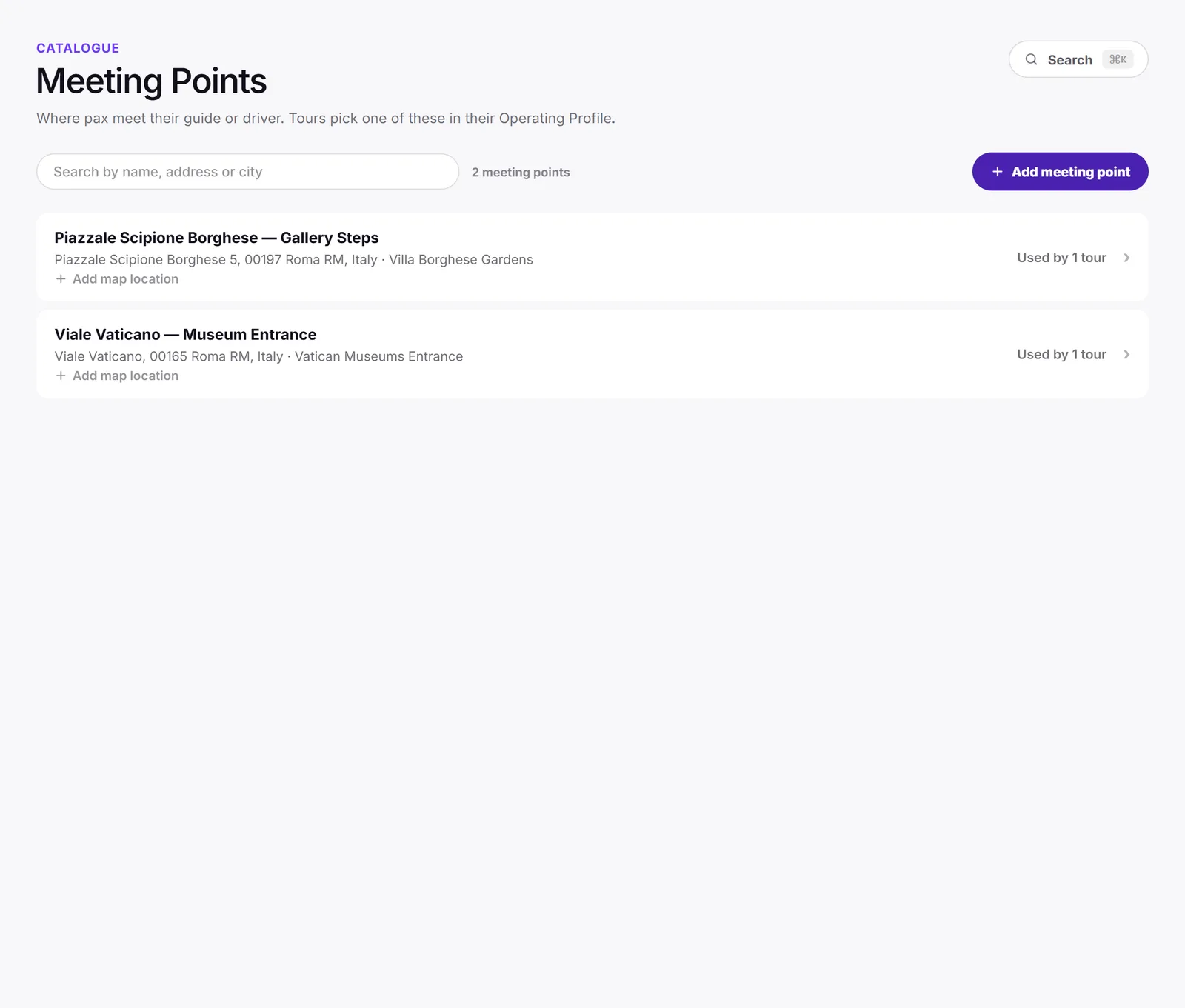
How the page is laid out
- At the top are the search field "Search by name, address or city", the number of points (for example "2 meeting points") and the Add meeting point button.
- In the middle there is a row for each point, in alphabetical order: name, address and city. A point that came from Bókun has the From Bókun label.
- Below the address, Open in Maps if the point has a map location, otherwise Add map location.
- On the right you read how many tours use it, for example "Used by 1 tour", or "Not used yet".
Add a meeting point
- Step 1:
Click Add meeting point. The window of the same name opens.
- Step 2:
Type the Name and choose the City.
- Step 3:
In Address, type the street and number, then click the right result. If you can't find it, click "Can’t find it? Enter the address manually".
- Step 4:
If you like, type the Instructions for pax. They apply to every tour that uses the point.
- Step 5:
Click Add meeting point at the bottom of the window. "Saved" appears and the point joins the list.
- Step 6:
Close the window with the ×: it stays open after saving.
The new point isn't used by any tour yet. To use it, choose it in the profile: see Set up an operating profile (Set up an operating profile).
Edit or delete a point
- Step 1:
Click the point's row. A window with its name opens.
- Step 2:
Change Name, City, Address or Instructions for pax. Below, "Used by" lists the tours and profiles that use the point.
- Step 3:
Click Save changes. "Saved" appears.
- Step 4:
To delete it, click Delete meeting point and then Delete. The point disappears from the list and its name appears followed by "deleted".
If the point is in use, the app says for example "Used by 1 tour — change its meeting point first". Click OK, change the point in that profile and try again.
Good to know
- For a point From Bókun, the name and address can only be changed on Bókun. Here you change the city and the instructions.
- Add map location opens the point's window with the address search ready.
- You can also create a point from the operating profile, with + New meeting point and then Create and use. In that case the profile uses it immediately.
- Deleting can't be undone.
If something goes wrong
- "Address search is off right now…" appears: type the full address. It is saved as text, with no map location.
- "That address is not in the chosen City…" appears: choose an address in that city or enter it manually.
- "Check the values and try again" appears: the name or address is empty or too long, or the city is missing. Correct it and save again.
- "This Meeting Point changed since it was shown…" appears: check the values shown now and click Save changes again.
- You close the window with unsaved changes: click Keep editing to go back, or Discard to close without saving.
- The list of cities is empty: the cities are the ones chosen in the Company step of guided setup. See Guided setup: connect Bókun and get started (Guided setup: connect Bókun and get started).
- The search says "No Meeting Points match this search": click Clear search.