
Here you manage the list of resources you can put on departures: guides, escorts, drivers and vehicles such as Coach 14. You also find your partners here, the companies that supply you, and who your first product still needs. You open it with Resources → Manage Resources; the page title is the same.
This page only builds your roster. You assign resources to departures from the departure window: see Assign guides, vehicles and escorts (Assign guides, vehicles and escorts).
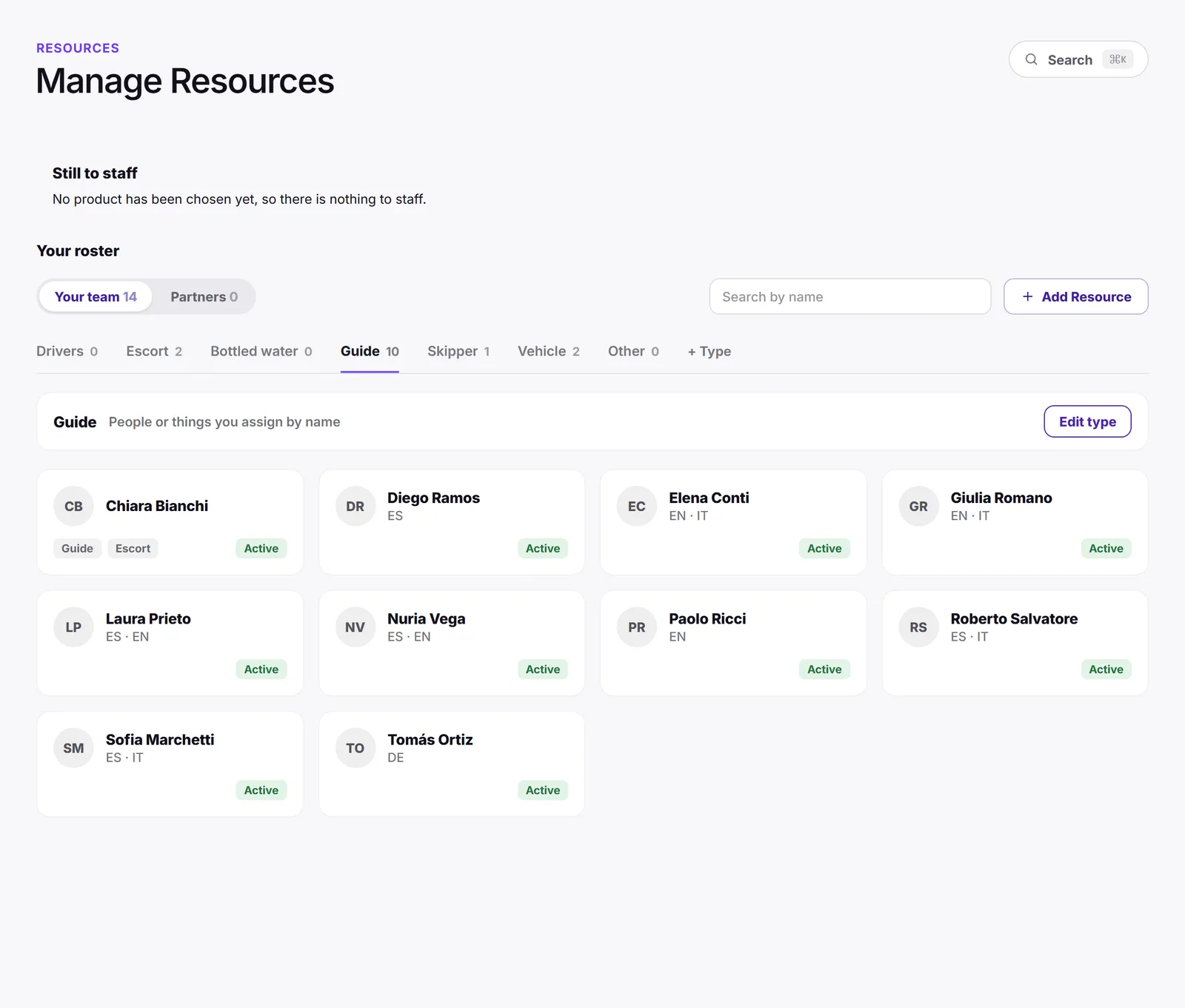
How the page is laid out
- At the top, the Still to staff section lists what your first product needs, minus who you already have. It is worked out again on every visit.
- Below it, Your roster has a bar with two buttons, Your team and Partners, each with its count. Next to them are the search by name and Add Resource.
- Under the bar, one filter for each resource type, with how many resources it holds: for example "Guide 10". The last filter is Other; at the end of the row is + Type.
- For a type you created, its name, its kind (for example "People or things you assign by name") and the Edit type button appear above the cards.
- In the middle, one card for each resource in the chosen filter. Click a card to edit it.
What the signals mean
- Under the name, the card shows the languages (for example "ES · EN" for Laura Prieto) or the seats, for example "4 seats". Types only appear if the resource has more than one.
- Active: the resource can be assigned to departures. Inactive: it stays on your roster, but cannot be given new departures.
- Several languages at once: it can serve departures in different languages together. Always needs a driver: every departure with that vehicle also asks for a driver.
- A card with the "#" symbol is a set of items you count, for example audio guides. It shows how many units you have and "Counted · follows the Pax".
- A row of Still to staff names a resource type and an operating profile, with the counts. For example "2 needed · 1 ready · 1 still to add": you still need one.
- A row with a reason instead of buttons is blocked. For example "This operation has no language yet, so we cannot tell who would qualify." Finish that profile first.
What you can do from here
- To see one type, click its filter, for example Guide: only the guides remain.
- To add a staff member or a vehicle, click Add Resource. See Add a resource and its contact details (Add a resource and its contact details).
- To add a supplier company, click Partners and then Add partner. The partner gets one email a day with the list of its services.
- To create a type that doesn't exist, click + Type. To change it, click Edit type. See Create a custom resource type (Create a custom resource type).
- To cover a row of Still to staff, click Create new or Use existing. The Cover this window opens.
- With Create new, type the Name, Email address and Phone number, then click Create.
- With Use existing, choose the resource in Who, then click Save.
- The window closes and the count updates. When nobody is missing any more, the row disappears.
- To take a resource out of use, open its card, untick Active and click Save. The card shows Inactive.
Good to know
- The page opens on the first filter, which may be empty: you see "Nobody matches these filters". Click another filter. Clear filters only clears the search by name.
- A resource can't be deleted: make it inactive instead. If it is still on a departure, you see "This cannot be saved as things stand…": first click Remove on that departure.
- Still to staff only looks at the first product, chosen in the guided setup. Until there is one, it says "No product has been chosen yet, so there is nothing to staff."
- If departures at the same time take more items than you have, Control Room shows "Over stock" with the numbers, for example "Over stock: 12/10".