
The products page gathers the products you sell on Bókun, for example "Vatican Museums Skip-the-Line". You open it from the sidebar with Products → Products. Here you see which products are confirmed, and you open a product to set up its operating profiles.
Products and rates come from Bókun automatically. You don't create or edit them in TourOperate.
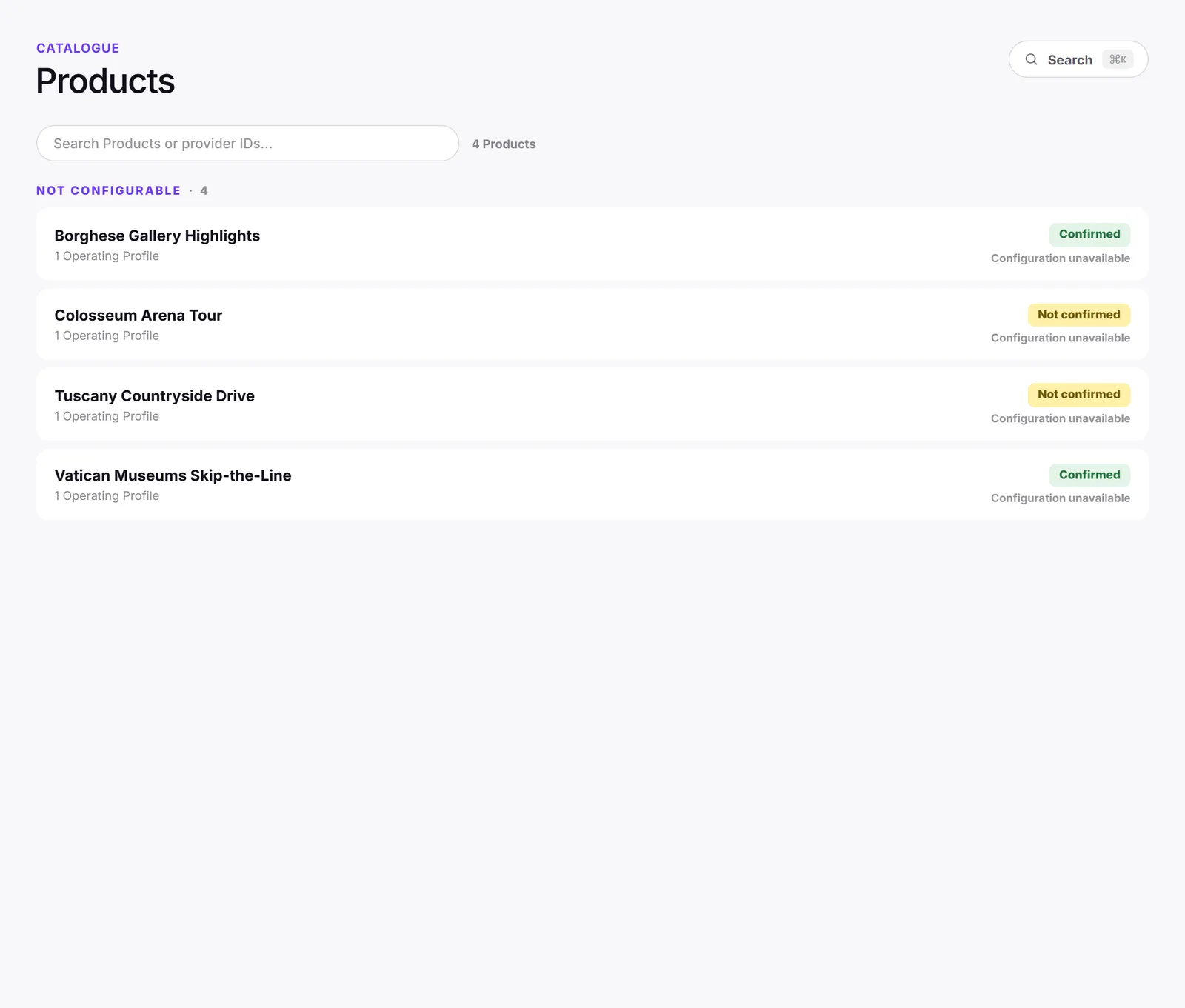
How the page is laid out
- At the top is the search field "Search Products or provider IDs…". It searches by name or by the product's number on Bókun. Next to it you see how many products there are, for example "4 Products".
- In the middle the products are split into groups, each with its count: first Needs setup, then Confirmed, then No operations, and finally Not configurable.
- On each card you find the product name, how many operating profiles it has (for example "1 Operating Profile") and its status. When TourOperate knows them, the product's number on Bókun and how many rates it has also appear.
What the signals mean
- Confirmed: all the product's operating profiles are confirmed. Its departures appear in Control Room and in Schedule.
- Not confirmed: at least one of the product's profiles is not confirmed yet. Open the product and confirm the profile.
- Profile missing: the product doesn't have an operating profile yet.
- No operations: you have said the tour needs no guides, drivers or other resources.
- Configuration unavailable, in the Not configurable group: the card doesn't open. The product doesn't have a single link to Bókun through an active connection.
- Inactive Product: the card doesn't open. Retired: Bókun no longer has the product, but its departures stay.
The product window
Click a product's card: its window opens over the list.
- At the top are the name, the status and a summary line: the number on Bókun, the profiles, the rates and the upcoming departures.
- The Recap tab shows a panel for each profile: Location, Language, Duration, Meeting point, Resources, Pax Details and Email Templates. Click the panel to open the profile.
- The Profiles tab lists the profiles with Open and, if they are not confirmed, Confirm profile. At the bottom is + Add another profile.
- The Bókun Rates tab shows the rates split by profile, under Organize rates.
- The Email Templates tab holds the email texts for this tour.
- At the bottom of every tab is the No operations needed switch.
What you can do from here
- To set up a profile, open its panel. See Set up an operating profile (Set up an operating profile).
- To decide which profile sells each rate, click Bókun Rates. See Choose which profile sells each rate (Choose which profile sells each rate).
- For a tour that needs no resources, turn on No operations needed. The product moves to No operations and no profiles can be created.
- If Products waiting for setup appears in Control Room, click Review products: this page opens.
Good to know
- There is no button to add a product. If the page says "No Products yet", check the connection to Bókun or wait for the import to finish.
- If the search finds nothing, click Clear search.
- If you close the window or switch tabs with unsaved changes, "You have unsaved changes. Close and discard them?" appears. Click Keep editing or Discard.
- Operating profiles have no item in the sidebar: they always open from the product window.