
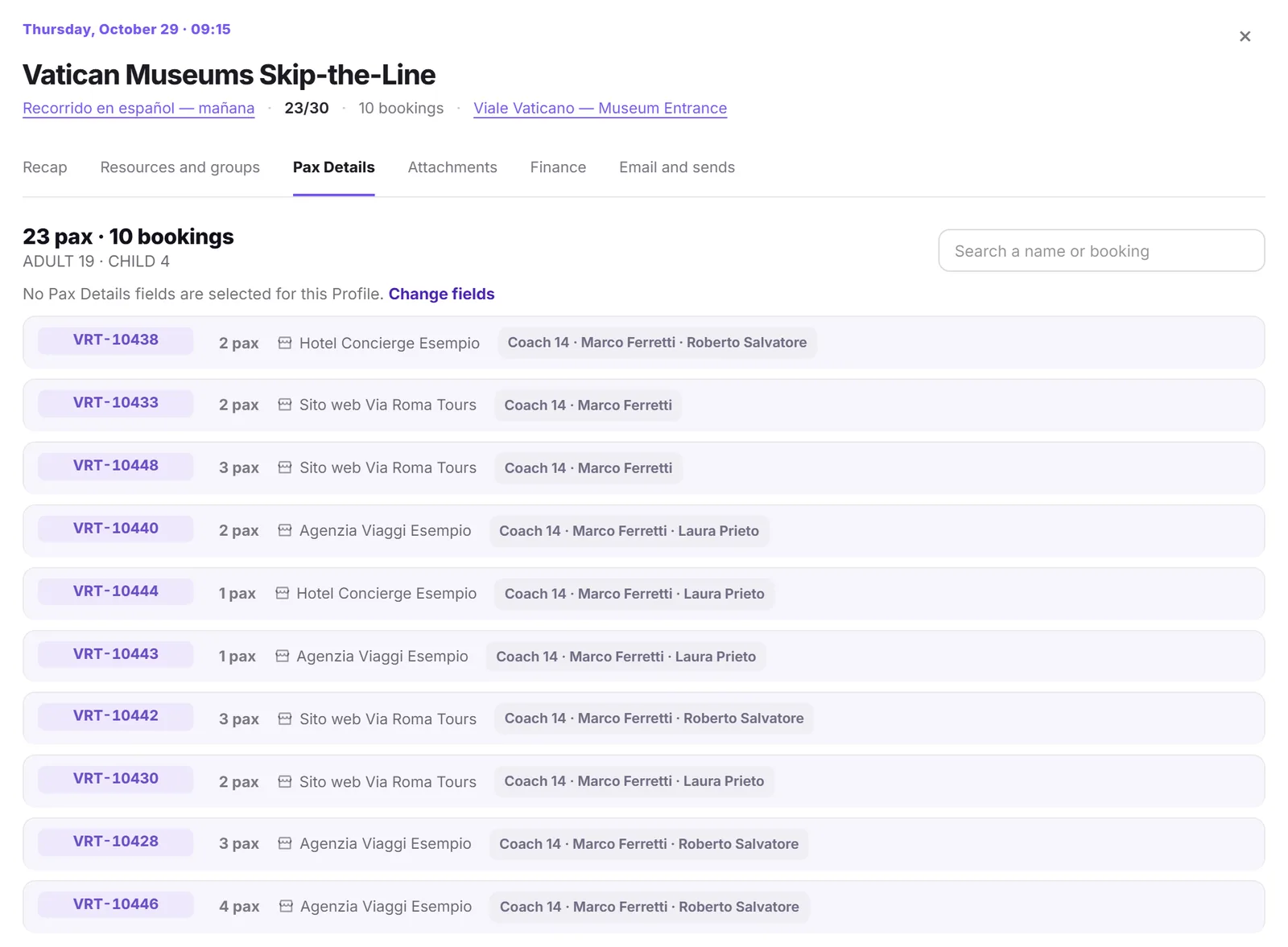
The passenger data collected by Bókun shows in two places: on the Pax Details page, for the whole day, and in a departure's window. For example, before the Vatican Museums at 09:15 you can check who is travelling and download the Excel file for the guide.
Before you start
The columns with passenger details depend on the departure's operating profile. The profile chooses them in Visible pax details. Without a choice you see only one row per booking. See Set up an operating profile (Set up an operating profile).
See a day's passengers
- Step 1:
In the sidebar, open Operations → Pax Details.
- Step 2:
Choose the day with Today, Tomorrow or Pick a date. All tours gives you the whole picture; to narrow it down, choose only the tours you need.
- Step 3:
Read the bookings in the departure's card. Each one shows the reference, main contact, phone, email and seller, then one row per passenger.
See a departure's passengers
- Step 1:
Open the departure from Control Room, or click Manage departure on Pax Details.
- Step 2:
Click the Pax Details tab. At the top you read the total, for example "23 pax · 10 bookings".
- Step 3:
To find someone, type in the Search a name or booking field.
Next to each booking you also see the resources running the service, for example "Marco Ferretti · Coach 14 · Laura Prieto".
Export to Excel
- Step 1:
On Pax Details, choose the day and the tours.
- Step 2:
Click Export to Excel. A file downloads with one row per passenger.
Each row gives the date, time, tour, booking, seller, main contact, phone, email and category, then the details chosen in the profile.
What happens next
- Every export is recorded under your account, with the day and the tours you chose.
- Each resource's email has an Excel file attached with only the bookings assigned to them.
- If a detail is corrected in Bókun, the new value shows after the next sync.
If something goes wrong
- You read "No Pax Details fields are selected for this Profile": click Set up Pax Details on Pax Details, or Change fields in the window, and choose the details in the profile.
- Phone and email stay empty and Bókun permissions shows at the top: Bókun hasn't granted permission to read contacts. Open TourOperate from Bókun again and approve all permissions.
- You can't click Export to Excel: the day is loading, has no bookings or has lines not linked to a departure. Wait and try again.
- The window says the departure has too many booking lines: click the bookings one by one to see their passengers.
- You read "Passenger details could not be loaded for this departure": try again later.