
The files you attach to a departure, such as a voucher or instructions, go out with the daily packet you send to the staff you assigned. For example, you attach the group voucher to the 09:15 Vatican Museums departure and send it only to Roberto Salvatore.
Before you start
- The person who should receive the file is assigned to the departure.
- The file is a PDF or a JPG, PNG or WEBP image.
Steps
- Step 1:
Open the departure: click its row in Control Room or its card in Schedule.
- Step 2:
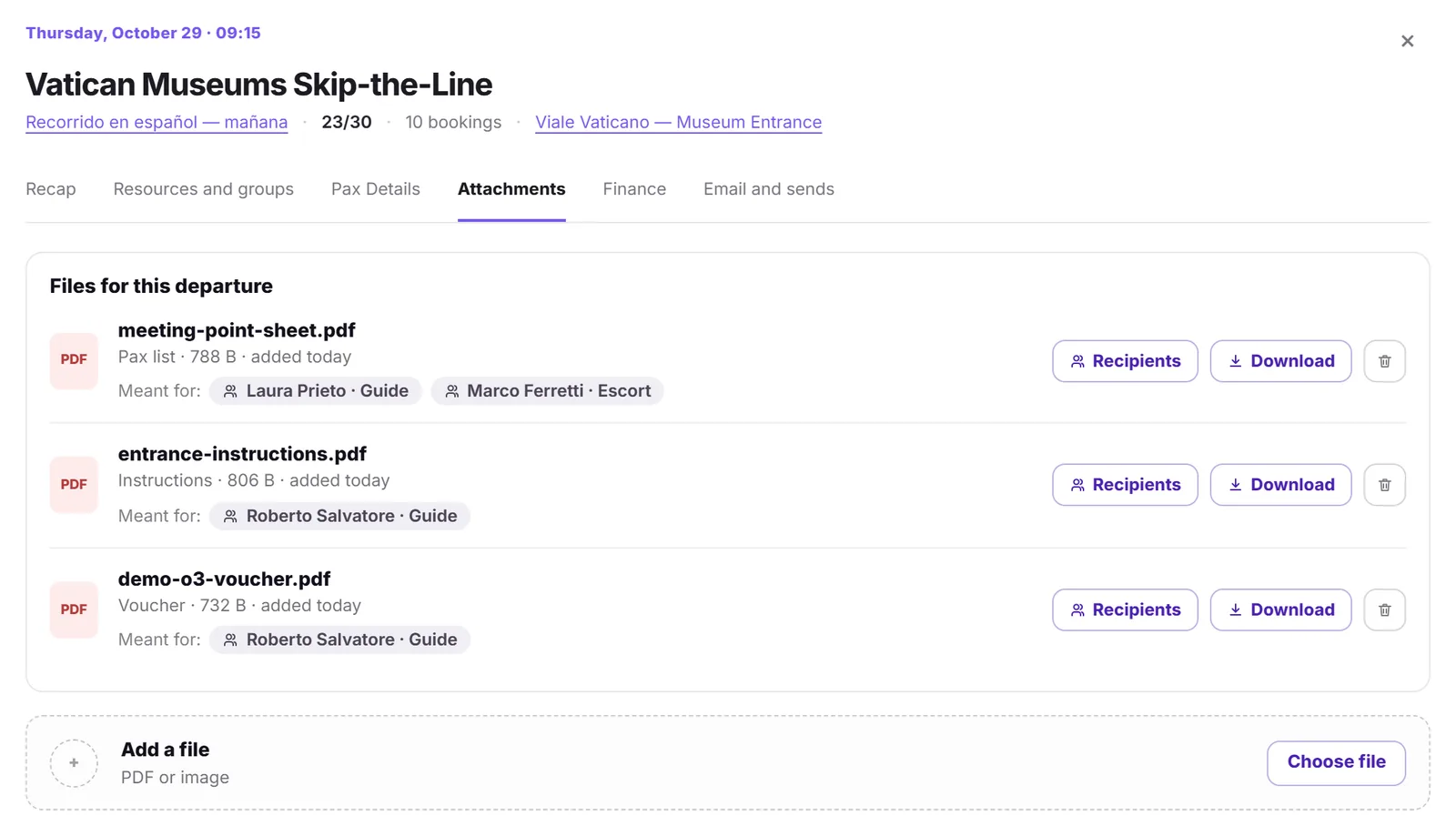
Click the Attachments tab. Files for this departure lists the files already attached; below it is the Add a file box.
- Step 3:
Click Choose file and choose the file on your computer. The Attach a file form appears below.
- Step 4:
In What kind of document is it? choose Voucher, Pax list, Instructions, Tickets or Other.
- Step 5:
In Who should receive it? tick the staff who should receive it. The list shows only the people confirmed on the departure.
- Step 6:
Click Attach file. The file appears in Files for this departure, with the names you chose next to Meant for:, for example "Roberto Salvatore · Guide".
Change a file you attached
Next to each attached file you find these buttons:
- Recipients opens "Who should receive this file?". Tick or untick staff, then click Save.
- Download opens the file.
- The bin archives the file. Once you confirm with Yes, archive it, the file no longer shows, can't be downloaded and isn't sent to anyone. This can't be undone.
To change a file's content, archive it and attach the new version.
What happens next
The file goes out with the daily packet to the staff you chose. On the Email and sends tab, each person's row counts their files, for example "2 files". In the packet preview you find it under Files attached. See Check and send the daily packet (Check and send the daily packet).
If something goes wrong
- Under Who should receive it? you read that nobody is confirmed on the departure yet: assign someone first. See Assign guides, vehicles and escorts (Assign guides, vehicles and escorts).
- "This workspace accepts PDF, JPG, PNG and WEBP files" appears: the file is another type. Save it in one of these formats and try again.
- Recipients shows someone who is no longer on the departure: untick them, then click Save.
- The preview says "This day carries more departures or files than one packet can hold": a packet carries at most 12 departures and 40 files, in at most 4 emails. Each file must fit in a single email. Archive the files you don't need.