
You open this page from the sidebar: Operations → Pax Details. It shows a day's passengers, departure by departure. For each booking you see who is travelling and the details the operating profile asks to show. From here you also download the day's Excel file.
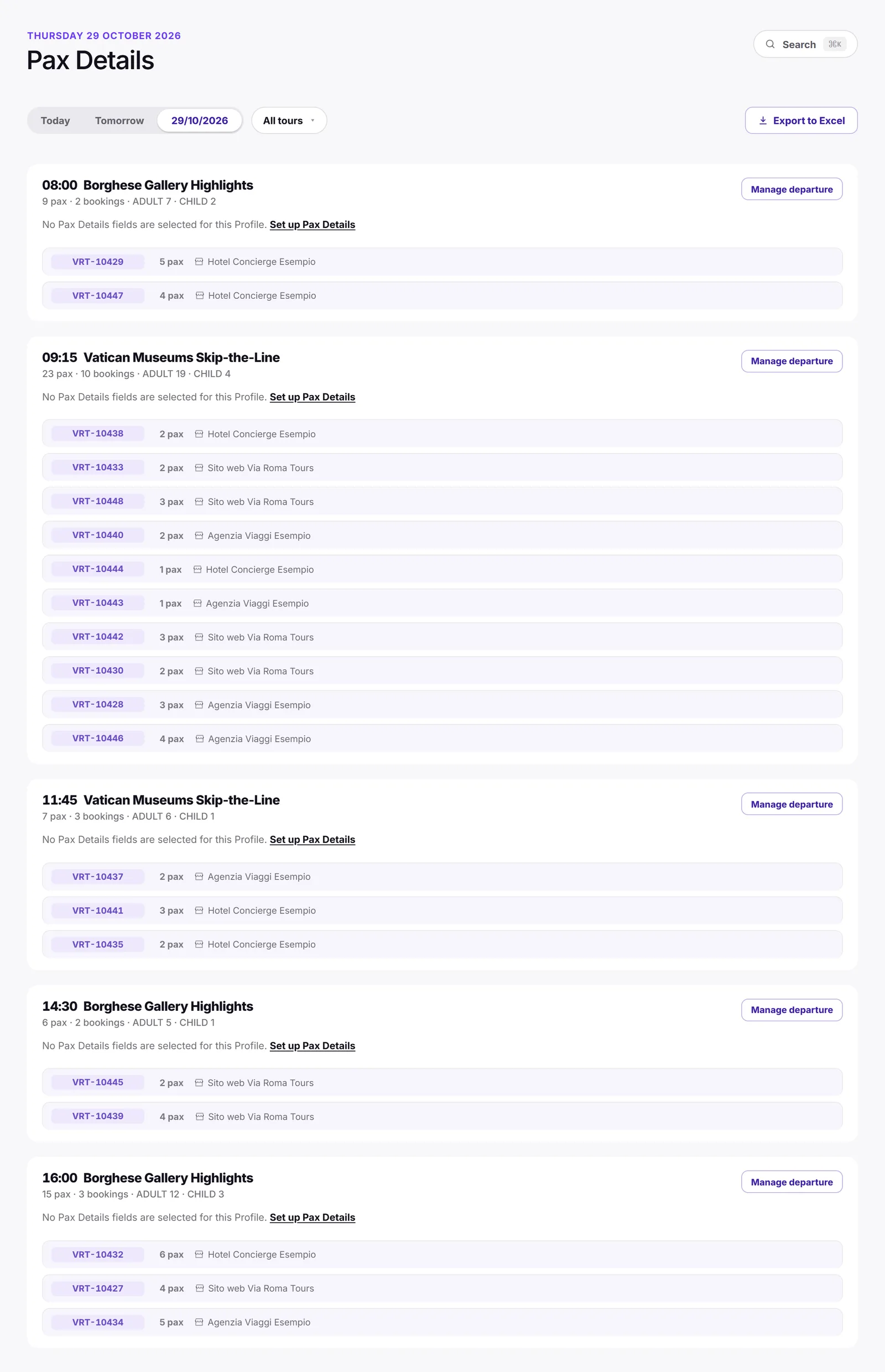
How the page is laid out
- At the top is the day written in full, for example THURSDAY 29 OCTOBER 2026. Below it you choose the day with Today, Tomorrow or Pick a date. Next to it is the tour selector: All tours shows everything, or you choose only the tours you need. On the right is Export to Excel.
- In the middle there is a card for each departure with at least one booking, in time order. The title gives the time and the tour. Below it you read the summary, for example "23 pax · 10 bookings · ADULT 19 · CHILD 4" for the Vatican Museums at 09:15.
- Next to the title of each card is the Manage departure button.
A departure's card
- Each booking has a header row: the reference, the main contact, how many passengers, the phone, the email and the seller.
- Below the header there is one row per passenger, adults first. The first column is the category, for example "ADULT" or "CHILD". The other columns are the details the operating profile makes visible, for example first and last name.
- If the profile chooses no details, you see only one row per booking, with the number of passengers.
What the signals mean
- "No Pax Details fields are selected for this Profile": the operating profile chooses no details to show. Click Set up Pax Details to choose them.
- Not provided: the passenger did not give that information.
- Could not be read: that person's data could not be read. Try again later.
- "Erased on request" or "Erased by retention": the data has been erased. "Scheduled for erasure on …" tells you when the departure's data will be erased.
- A note above the cards says that some booking lines are not linked to a departure: the totals are incomplete and the export is held.
What you can do from here
- To download the day's passengers, click Export to Excel. You get an Excel file with one row per passenger. Every export is recorded under your account. More in See passenger information and export the report (See passenger information and export the report).
- To work on the departure, click Manage departure. It opens the same departure window you open from Control Room. See The departure window (The departure window: the six tabs).
Good to know
- Export to Excel is available only when the day has fully loaded, every booking is linked to a departure and there is at least one booking.
- Cancelled bookings don't appear on this page.
- TourOperate doesn't change passenger data. Corrections are made in Bókun and show here after the next sync.
- If you read "No departure on this day carries a booking yet", choose another day or look for the departure in Schedule.