
A day with TourOperate has three stages: you look at the day's departures, prepare the ones that are not ready, and send each staff member their email for the day. This article gives you the route; the details are in the linked articles.
Transcript
Operations software for tour operators.
Open Control Room and see your entire working day at a glance. Our Control Room displays every scheduled service and highlights any issues that need to be resolved.
Need to assign a guide? TourOperate suggests guides who are available on the required day and at the required time and meet the service requirements, such as language. It also shows you why the other guides are not suitable.
Assign your guides to tours in advance, so every service is already covered. Our alerts flag any activities that still need a guide.
Someone can't make it? Choose a suitable replacement, and the bookings are automatically reassigned to the new guide.
When everything is in place for an activity, Control Room marks it as Ready.
On the "Passenger Details" screen, you'll find all your bookings organised by date and service, along with the passenger information you need to run each activity. You can export all the details to an Excel file.
Finally, each staff member receives a single email with their work schedule for the day, without having to track down information across chats, emails, and phone calls. Send the email with just one click, using templates prepared in advance with all the service details: meeting point, times, and operational information.
Try TourOperate at touroperate.com.
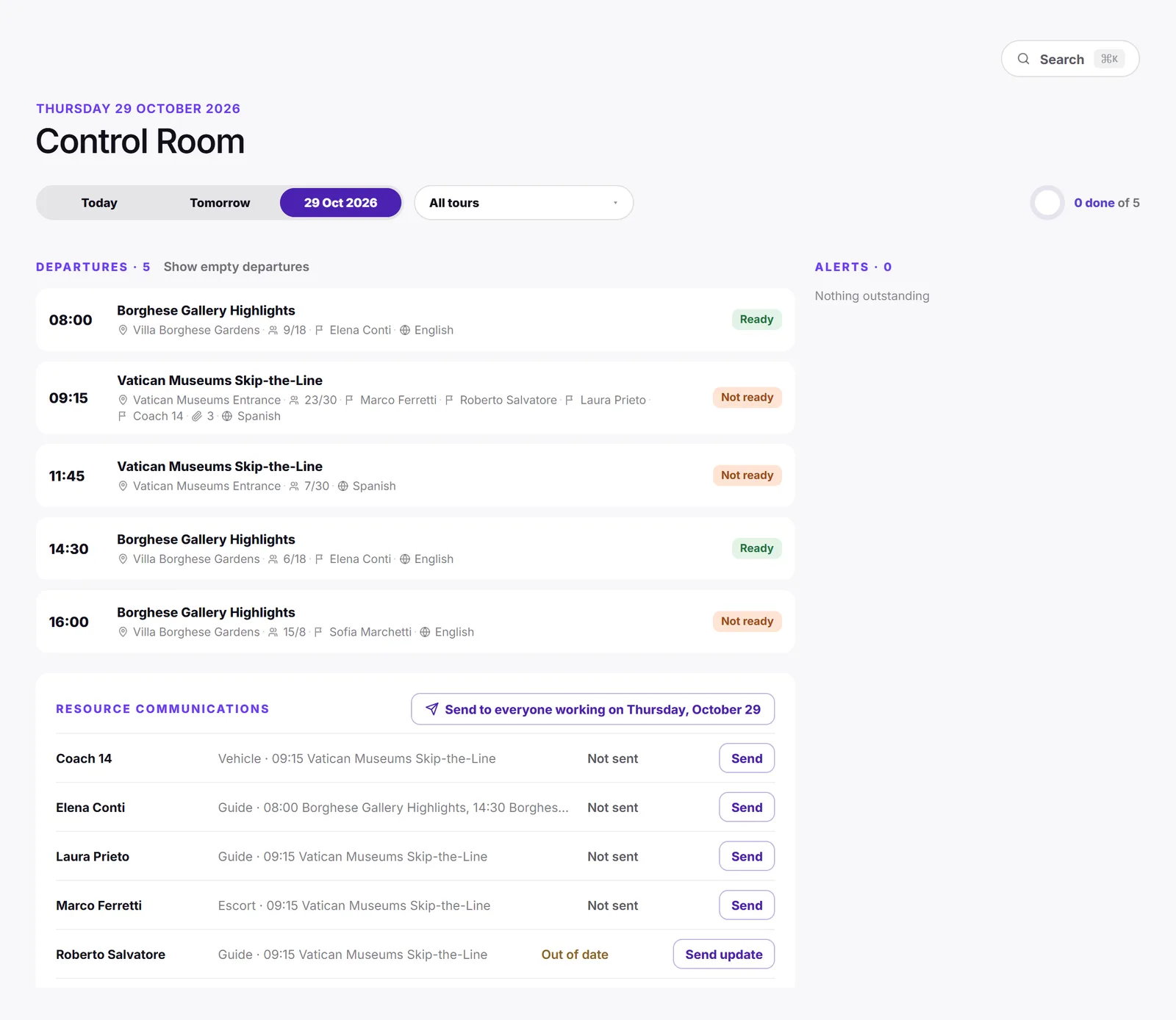
On 29 October, for example, two bookings on the 09:15 Vatican Museums departure don't have a guide yet.
Before you start
You have finished guided setup and your resources have an email and a phone. See Guided setup: connect Bókun and get started (Guided setup: connect Bókun and get started).
Look at the day
- Step 1:
Sign in to TourOperate. Control Room opens.
- Step 2:
Choose the day with Today, Tomorrow or Pick a date.
- Step 3:
Read the counter at the top, for example "0 done of 5".
- Step 4:
Scroll through Departures. The rows showing Not ready are the ones to open.
- Step 5:
Look at Alerts: it gathers today's and tomorrow's departures that still have something to do.
To read each status label, see Control Room (Control Room).
Prepare a departure
- Step 1:
Click the departure's row, for example the 09:15 one. The departure window opens on the Recap tab.
- Step 2:
In What still needs doing, read what is missing, for example "2 bookings not covered".
- Step 3:
Click Choose their guide. The Resources and groups tab opens: give the two bookings a guide. See Split bookings between guides (Split bookings between guides).
- Step 4:
On a departure that is still empty, like the 11:45 one, click Assign guide and choose the guide. Do the same with Assign escort and Assign vehicle.
- Step 5:
Go back to Recap. When nothing is missing any more, you read Ready next to What still needs doing.
There is no button to mark the departure ready: the status updates automatically.
Check and send the emails
- Step 1:
In the same window, click the Email and sends tab. Under "Who gets it" you find each assigned staff member, with the status of their email.
- Step 2:
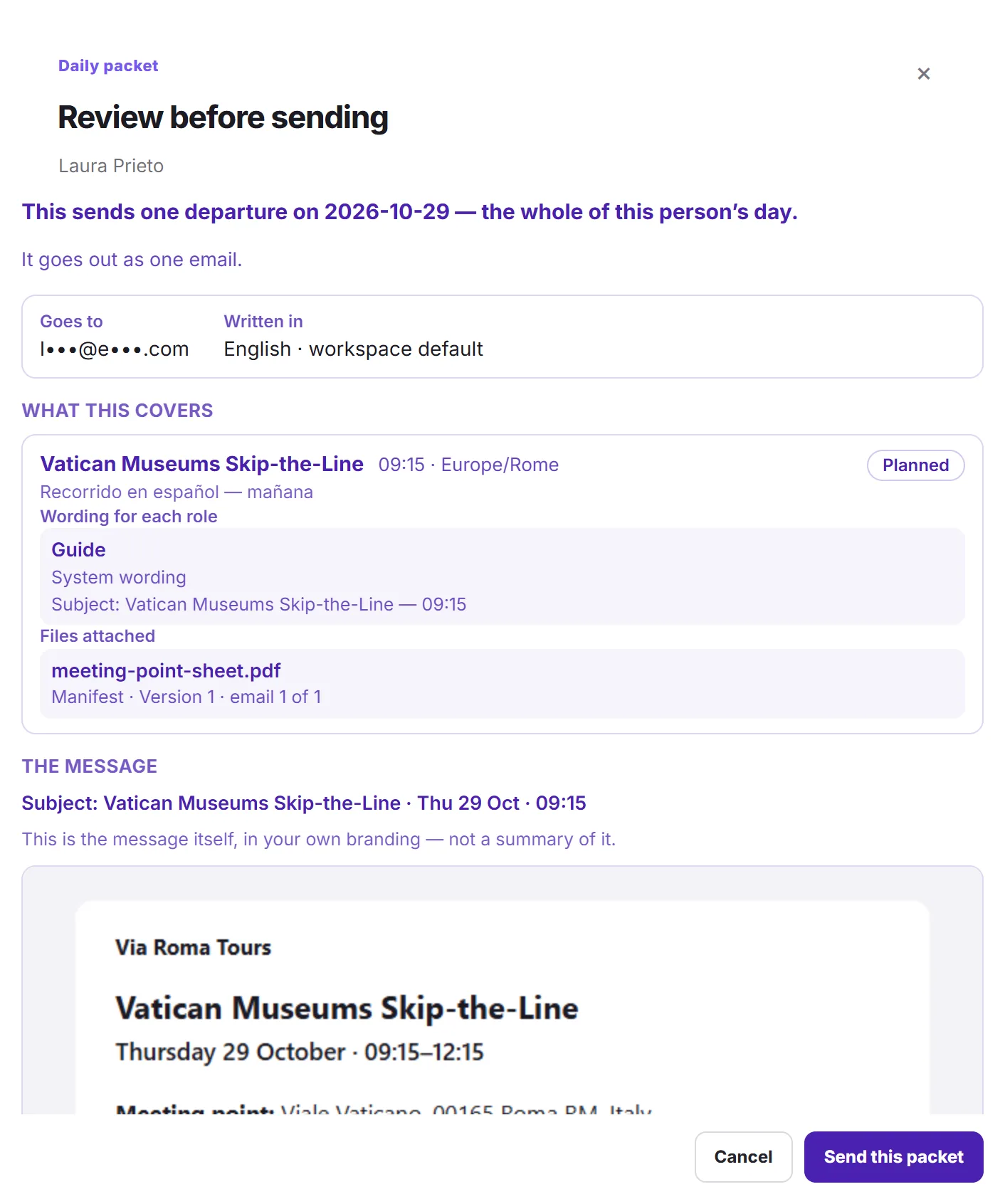
Click Preview and send next to a staff member's name, for example Laura Prieto. Review before sending opens: it is the actual email, not a summary.
- Step 3:
Check Goes to, Written in, What this covers and Files attached.
- Step 4:
Click Send this packet, or Cancel to send nothing.
What happens next
- In Control Room, Resource communications shows the new status of each staff member's email.
- When the departure is ready and everyone's emails are sent and accepted, the departure becomes Done and the counter goes up.
If something goes wrong
- The departure stays Not ready: each item under What still needs doing has its own button. See What still needs doing and alerts: what each item means (What still needs doing and alerts: what each item means).
- The preview says the staff member doesn't have an email address yet: add one on the Manage Resources page and open the preview again.
- A departure doesn't show in Control Room: see I can't find a departure (I can't find a departure).