
Everyone assigned to a departure receives their own daily packet. It is a single email with all their departures of the day, the text for their role, your files and the link to their schedule. Before you send it you see the preview, which is the actual message.
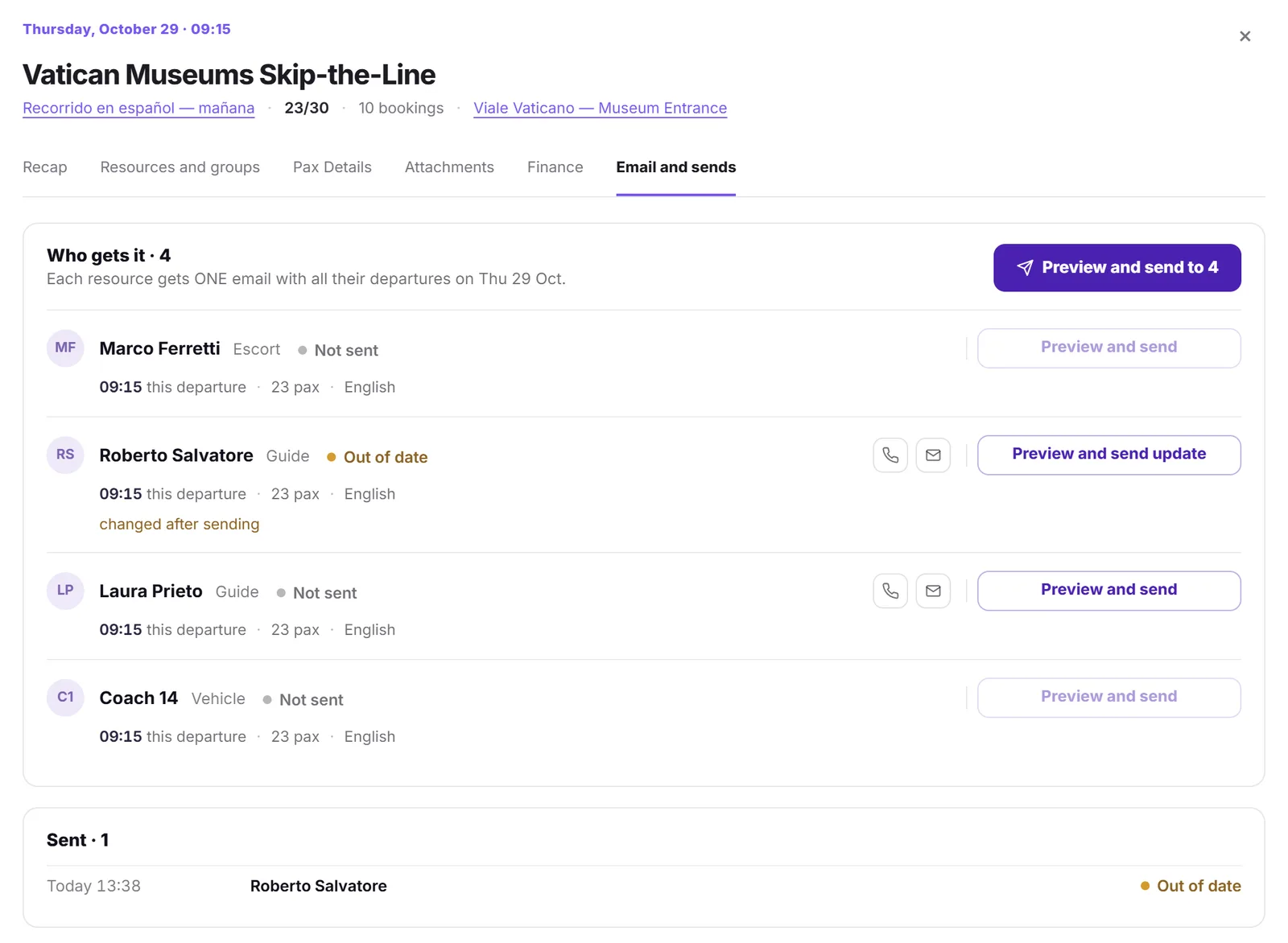
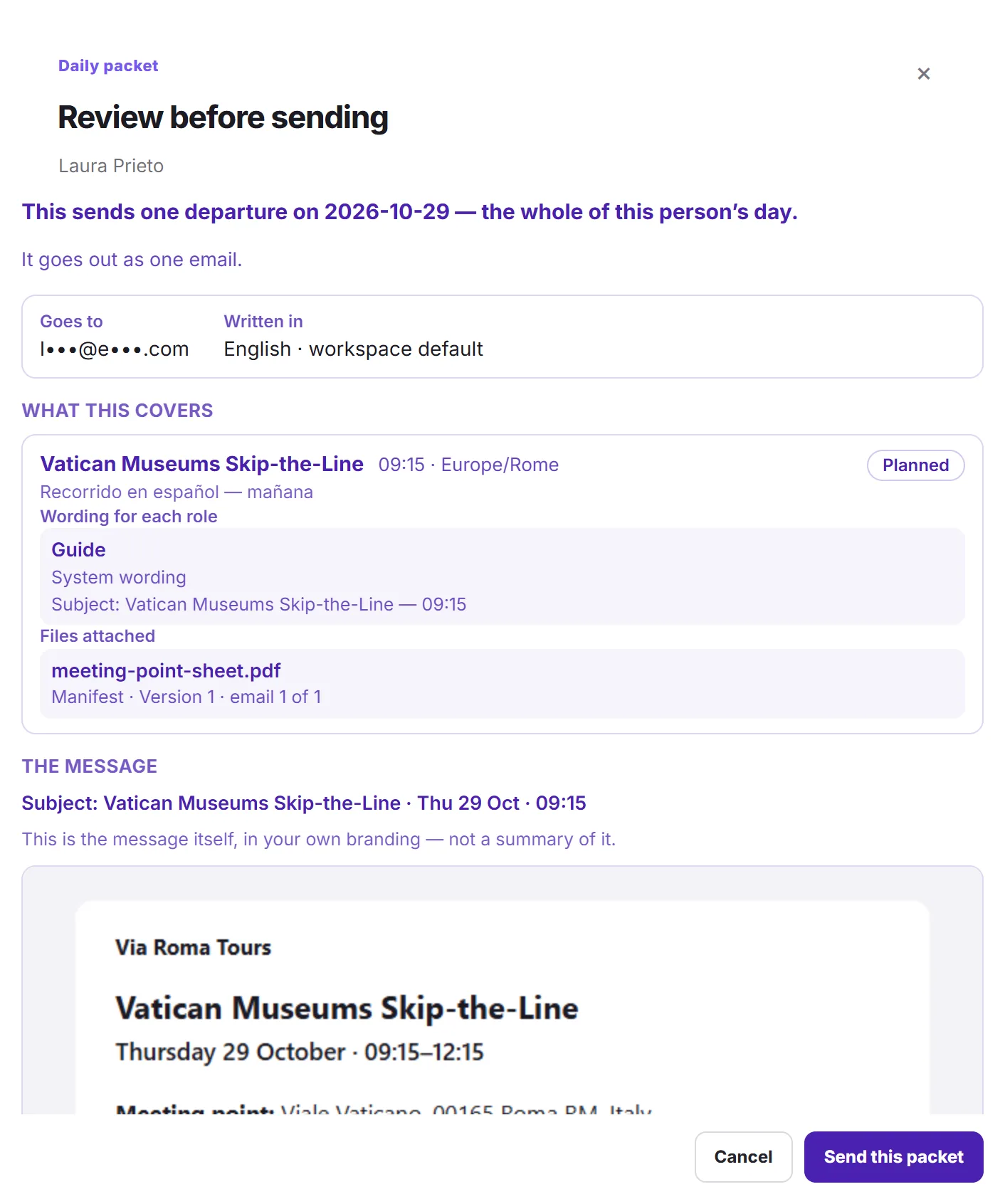
At 09:15 at the Vatican Museums, for example, Laura Prieto is assigned as guide: you can check and send her packet.
Before you start
- The person is assigned to the departure and has an email saved on the Manage Resources page. See Add a resource and its contact details (Add a resource and its contact details).
- Your company name and language are set. Without these settings the preview can't be created.
Check and send
- Step 1:
Open the departure and click the Email and sends tab. Under "Who gets it" you find everyone assigned, with the status of their email, their departures, language and files.
- Step 2:
Click Preview and send in the person's row. If their email is Out of date, the button is Preview and send update.
- Step 3:
Review before sending opens. Check Goes to, with the address partly hidden, and Written in.
- Step 4:
Check What this covers, Files attached and, under The message, the subject and the text with your branding.
- Step 5:
You can see how many emails the packet goes out as, for example "It goes out as one email." Large files may need more than one email.
- Step 6:
Click Send this packet to queue it, or Cancel to send nothing.
You can do the same from Control Room: in Resource communications click Send or Send update next to the person's name. The same preview opens.
Send to several people at once
- On the Email and sends tab, the "Preview and send to 4" button writes to the departure's staff. It skips anyone who has already received the email, if nothing has changed since.
- In Control Room, Send to everyone working today writes to all the day's staff. First you see who gets it and who has already had it; you can open the previews before sending.
What happens next
The person's row goes from Not sent to Sent, then to Delivered and Opened. The send also appears in the "Sent" list, with date and time.
The person opens the link in the email and sees their schedule, with the Attached documents. There they can click I have seen this.
If something goes wrong
- The preview says the person has no email address yet: add it on Manage Resources and open the preview again.
- The preview has been open too long: click Open a new preview.
- The email shows Delivery failed: check the person's address, then click Preview and send again.
- The email shows Out of date and "changed after sending": the person's day has changed. Send the update.
- The preview says the packet is too large: see Attach files to a departure (Attach files to a departure).