
A resource is a staff member, a vehicle or an item you can assign to a departure. Every staff member or vehicle has an email address and a phone number, saved once on the Manage Resources page. Departure emails use that address: there is no other place in a departure to enter contact details.
For example, before you assign Diego Ramos as a guide, you add Diego here, with email and phone.
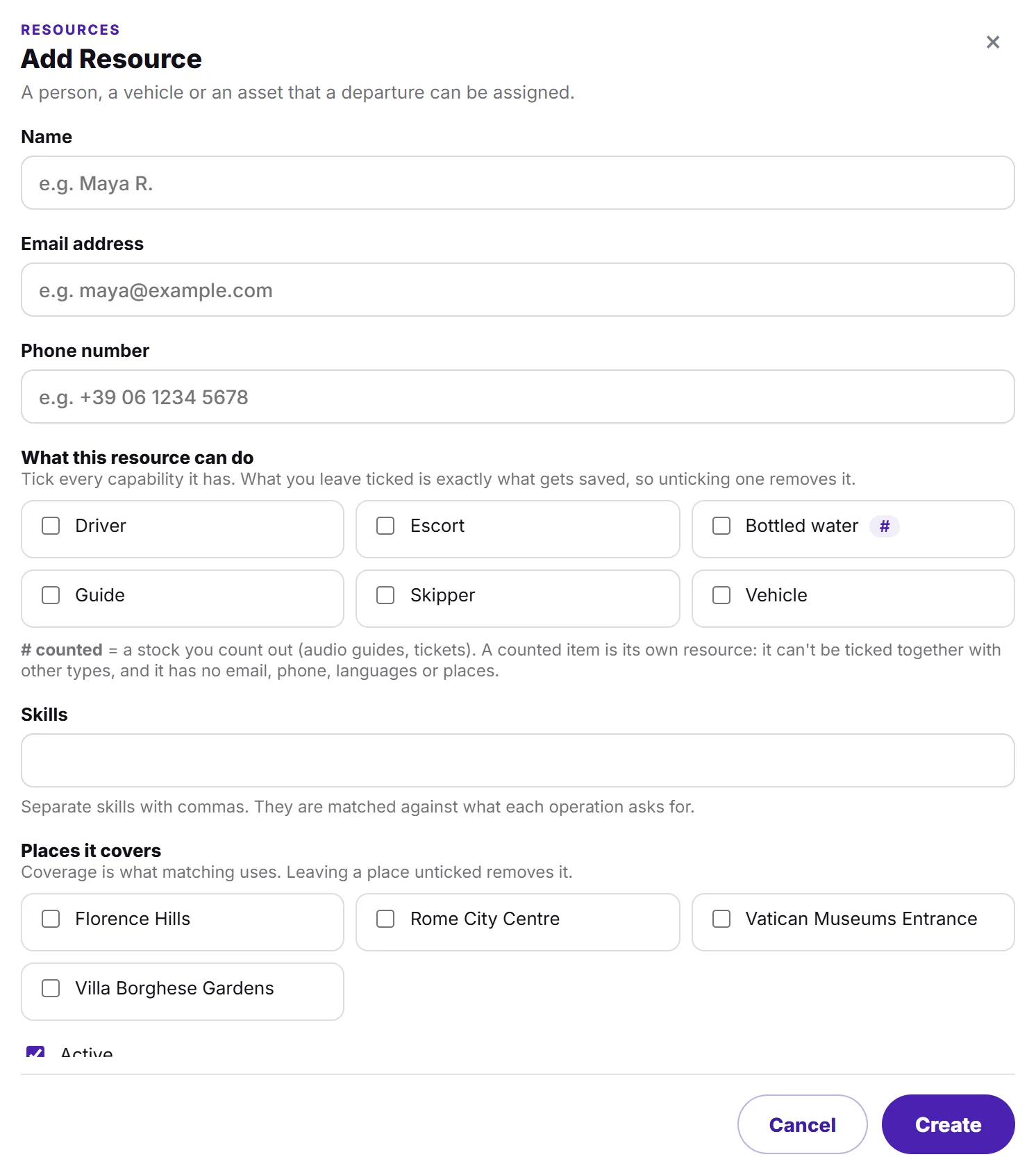
Add a resource
- Step 1:
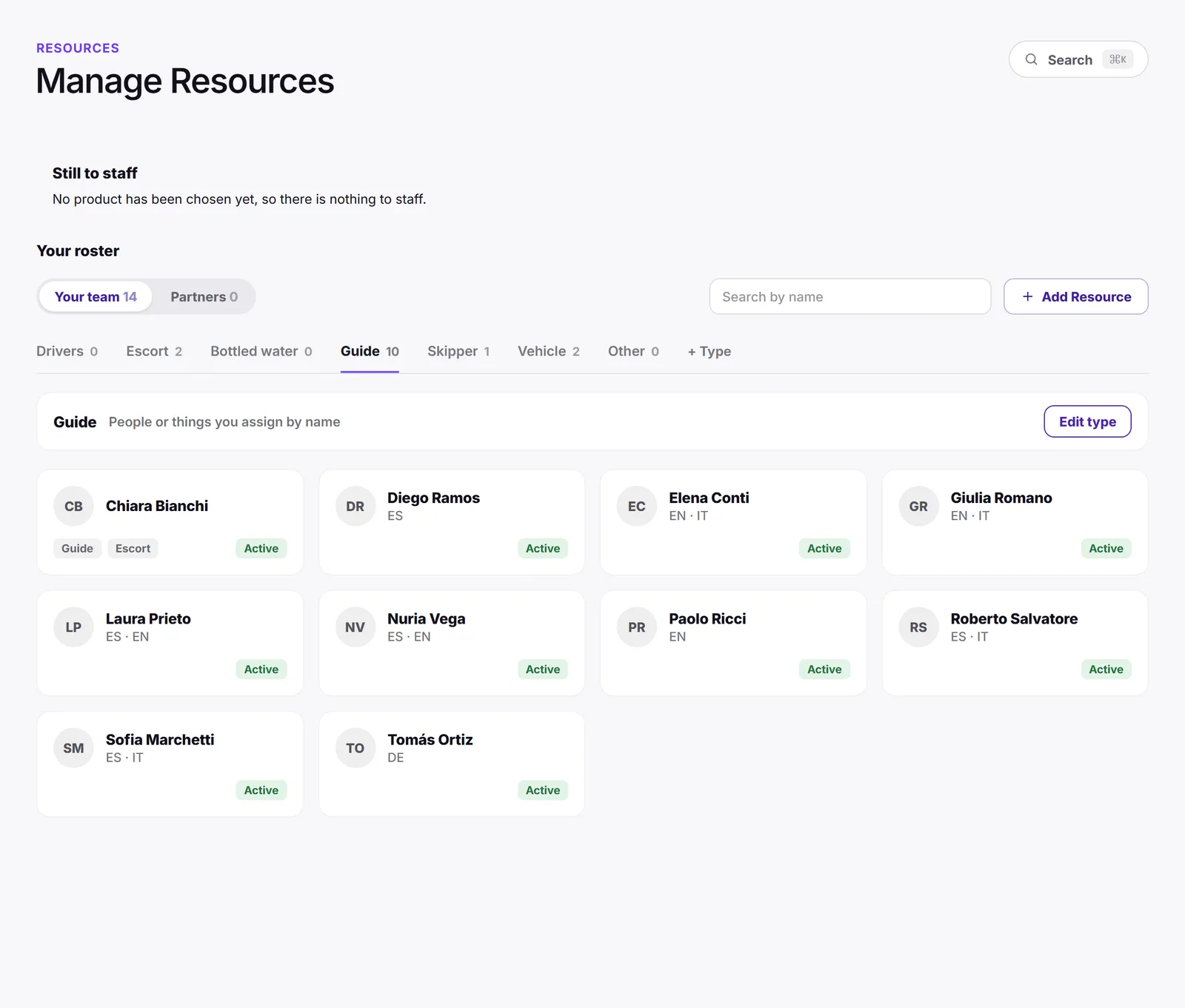
In the sidebar, open Resources → Manage Resources and leave Your team on.
- Step 2:
Click Add Resource. The Add Resource window opens.
- Step 3:
Type the Name, the Email address and the Phone number. All three are required.
- Step 4:
In What this resource can do, tick every capability, for example Guide. If How many it takes appears, type the capacity: for a vehicle it is the number of seats.
- Step 5:
Fill in Skills, separated by commas, Languages and Places it covers. Matching with departures uses these details.
- Step 6:
Leave Active ticked and click Create. The window closes and the resource appears in its type's filter as Active.
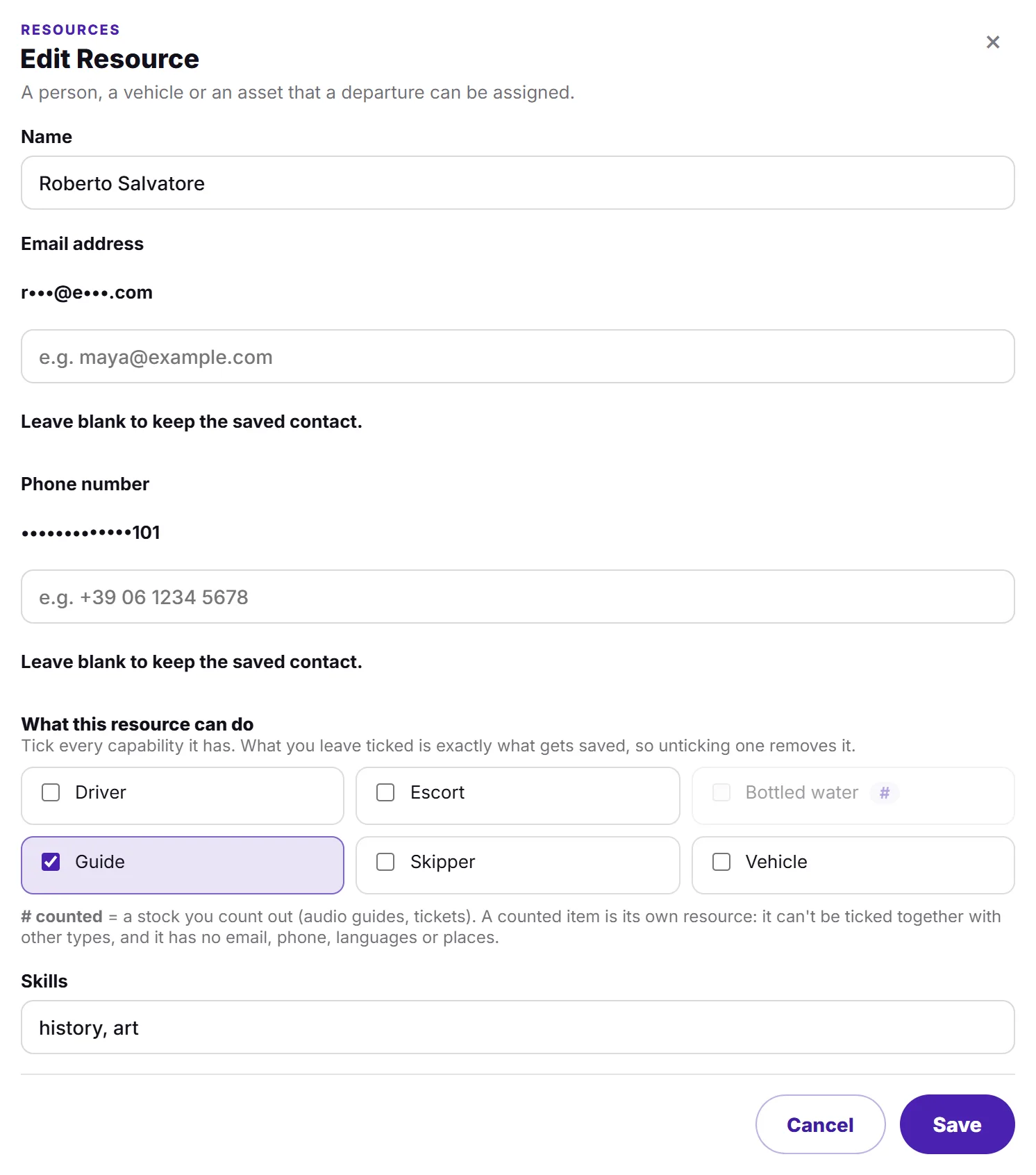
Edit the saved contact details
- Step 1:
In Your roster, click the type's filter and then the resource's card.
- Step 2:
Edit Resource opens, with the saved email and phone partly hidden, for example "r•••@e•••.com".
- Step 3:
Type the new address or number in full. To keep the saved one, leave the field empty: the note Leave blank to keep the saved contact. reminds you.
- Step 4:
Click Save. The window closes.
What happens next
- On the departures the resource is assigned to, the Email and sends tab lists it under "Who gets it", with Preview and send.
- The preview of its email goes to the address saved here.
If something goes wrong
- The preview says "Add this Resource's email and phone in Resource management, then review again": the resource is missing a contact. Open it in Manage Resources, complete the details and try again.
- The window doesn't offer Languages: it only appears once your company's languages are saved. Can serve several languages at once appears when you tick at least one language.
- You tick a capability marked "#" and email and phone disappear: it is an item you count, like audio guides. It stands alone and only asks for How many you have.
- The assignment is refused with "Conflict — the state changed underneath…": check that the resource has both email and phone. See Assign guides, vehicles and escorts (Assign guides, vehicles and escorts).