
Control Room is the page where your day starts. It shows a day's departures, whether they are ready, who still needs their email and what needs your attention. It opens as soon as you sign in to TourOperate.
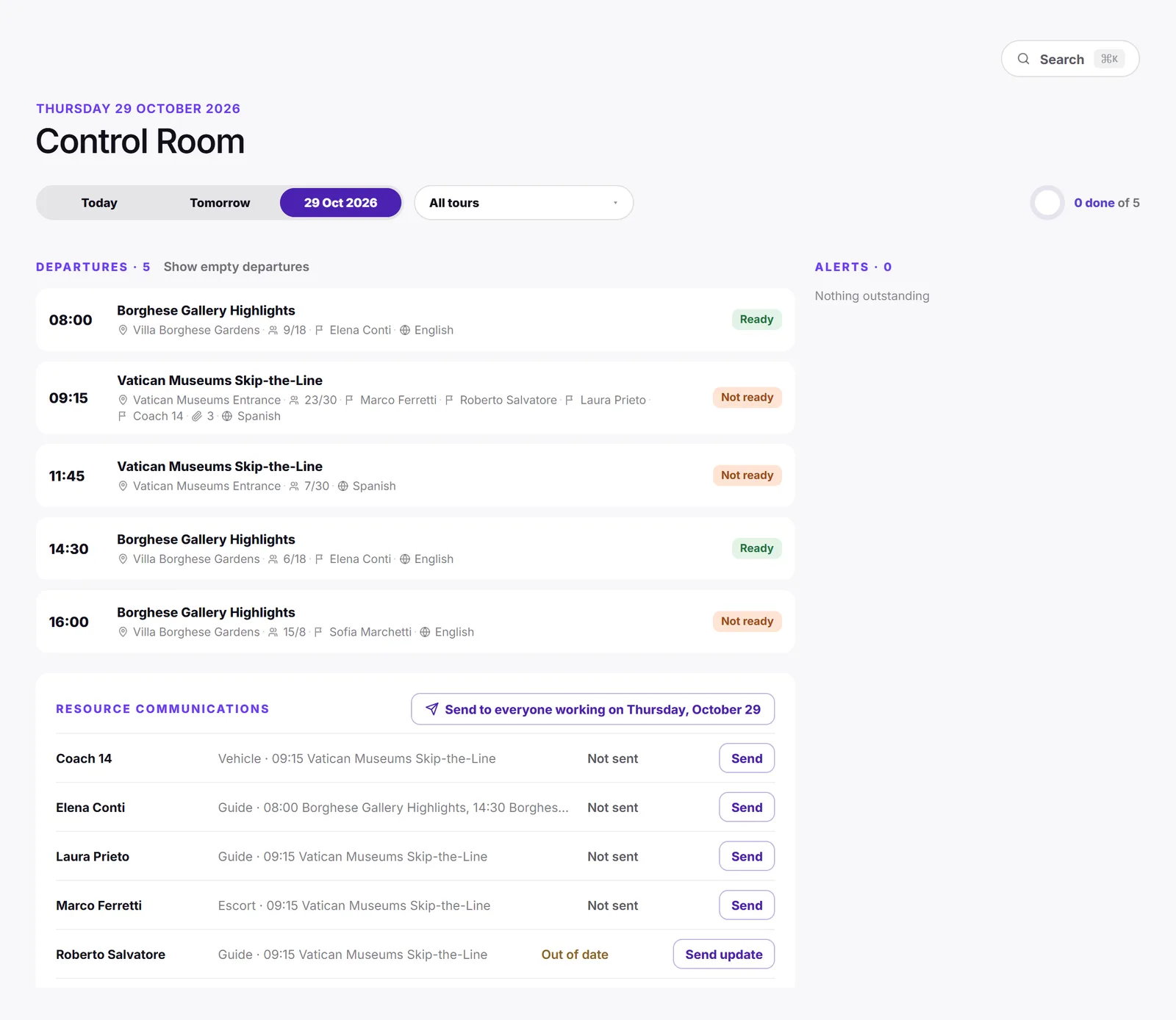
How the page is laid out
- At the top is the date you're looking at, for example Thursday 29 October 2026. If you haven't finished the guided setup, Continue guided setup appears. If your products are short of resources, a line says how many staffing tasks still need somebody, with the Manage resources button. It opens the Manage Resources page, where you complete your roster.
- Below the date you choose the day with Today, Tomorrow or the Pick a date calendar. Next to it is the tour selector: All tours shows everything, or choose only the tours you care about. Further right, a counter says how many departures are done, for example "0 done of 5".
- In the middle, Departures lists the day's departures in time order. Each row shows the time, the tour, the location, the pax against the seats (for example 23/30), who is assigned, how many files are attached and the language. At the end of the row is the departure's status.
- Below the departures, Resource communications lists every staff member and every vehicle working that day. For each one you see their departures, the status of their email and a button.
- On the right, Alerts gathers today's and tomorrow's departures that still have something to do, even when you're looking at another day. If there's nothing, you read "Nothing outstanding".
What the signals mean
At the end of each row is the departure's status. TourOperate works it out automatically from the departure's data.
- Ready: the profile is confirmed, every required guide and driver is assigned and every booking is covered. On 29 October, for example, the 08:00 Borghese Gallery departure is ready.
- Not ready: something is still missing. At 11:45 at the Vatican Museums, for example, nobody is assigned. Open the departure and read What still needs doing.
- Done: the departure is ready and every assigned resource's email has been sent and accepted. The counter at the top counts these departures.
- Profile missing or Not confirmed: the departure has no operating profile yet, or its profile isn't confirmed.
- No operations: the product needs no preparation. The departure isn't included in the counter.
In Resource communications, each staff member's email is Not sent, Sent, Delivered, Opened, Delivery failed or Out of date. Out of date means their day changed after the email was sent, as for Roberto Salvatore on 29 October.
What you can do from here
- To open a departure, click its row. The departure window opens on the Recap tab. See The departure window: the six tabs (The departure window: the six tabs).
- To assign staff and vehicles, see Assign guides, vehicles and escorts (Assign guides, vehicles and escorts).
- To send a staff member their email for the day, click Send in their row. When needed, the button becomes Send update or Send again. You always see the preview before sending: see Check and send the daily packet (Check and send the daily packet).
- To email everyone at once, click Send to everyone working today. For another day the button carries the date, for example "Send to everyone working on Thursday, October 29".
- To go to an alert, click its card in Alerts. Control Room switches to that day and opens the departure. See What still needs doing and alerts: what each item means (What still needs doing and alerts: what each item means).
- If Products waiting for setup appears below the alerts, click Review products: the Products page opens.
Good to know
- Normally you see only departures with at least one booking or an assigned resource. To see the others too, click Show empty departures.
- Empty departures, cancelled ones and those with No operations don't count towards the done counter.
- No button marks a departure as ready: the status changes automatically as you assign resources and cover the bookings.
- The day follows UTC time. Until 1 or 2 a.m. Italian time, Today still shows the previous day.