
To use TourOperate you need a personal account, with your email address and a password. You create it once; after that you sign in with those details.
You create it on app.touroperate.com: open the sign-in page and click Create an account under the form. You connect your booking system, for example Bókun, later, in guided setup. See Guided setup: connect Bókun and get started (Guided setup: connect Bókun and get started).
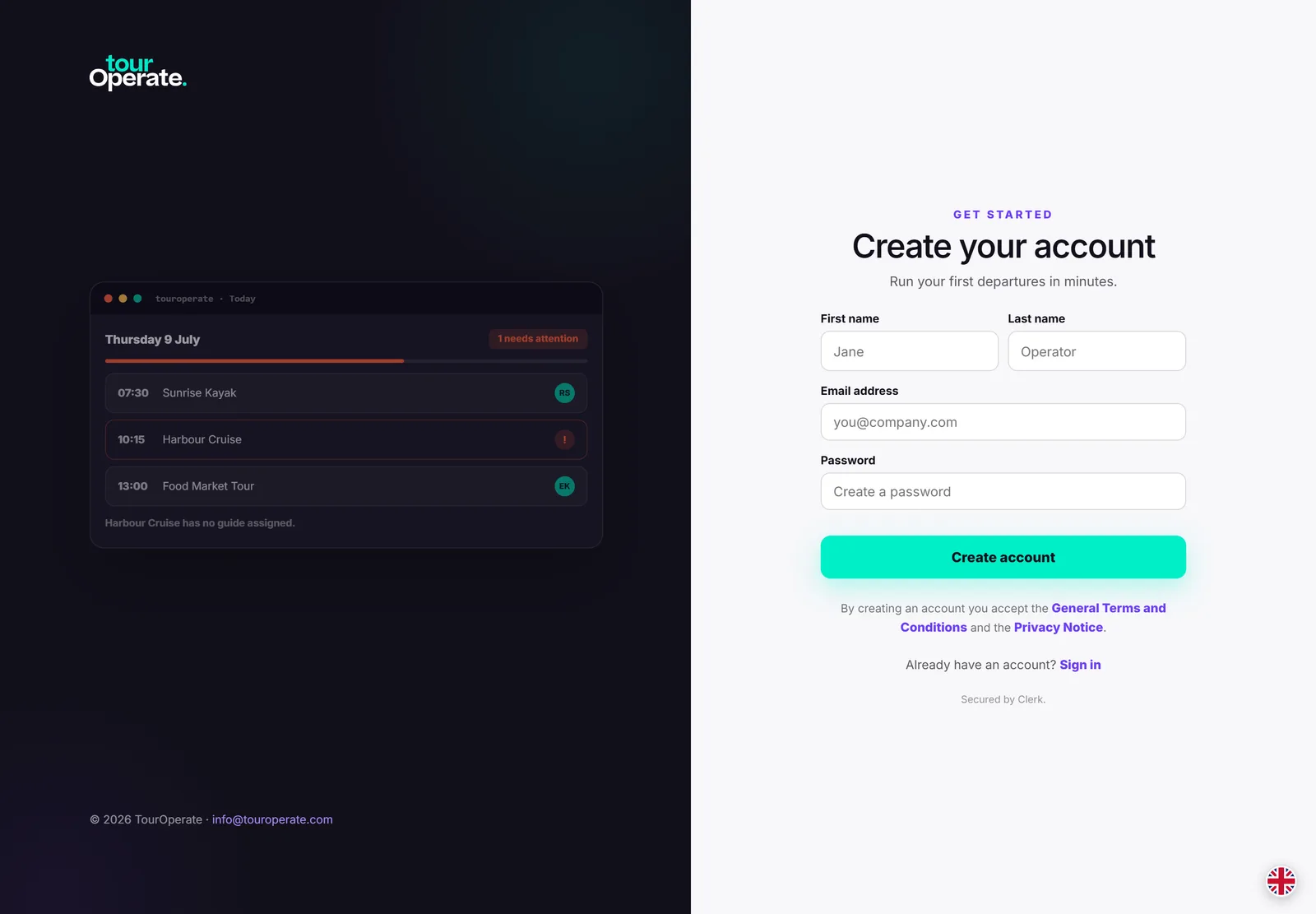
Sign up
- Step 1:
Create your account opens.
- Step 2:
If you like, type your First name and Last name.
- Step 3:
Type your Email address and choose a Password.
- Step 4:
Under the button you find the links to the General Terms and Conditions and the Privacy Notice. They open in a new tab: read them before you continue.
- Step 5:
Click Create account. By creating the account you accept these two documents.
If the page shows Continue with Google or Continue with Microsoft, you can also sign up with that account.
If you already have an account, don't create another one: click Sign in at the bottom of the page and sign in.
To see the page in another language, click the flag at the bottom right and choose English, Español or Italiano.
Verify your email
- Step 1:
Verify your email opens. Look in your inbox for a message with a 6-digit code.
- Step 2:
Type the code in Verification code.
- Step 3:
Click Verify email.
If the code doesn't arrive, click Resend code. To correct the address, click Start over and you go back to the form.
Add your name
This step only appears if your account doesn't have a name yet.
- Step 1:
In Add your name, type your First name and Last name.
- Step 2:
Click Continue.
What happens next
- Your account is ready and guided setup opens on Company. Then you choose your booking system. See Guided setup: connect Bókun and get started (Guided setup: connect Bókun and get started).
- If your organization doesn't have a workspace yet and you are an administrator, TourOperate creates it automatically and opens the guided setup. If you aren't an administrator, the Almost there page tells you that an administrator has to create it.
- If an admin invited you to their team, TourOperate automatically adds you to their workspace.
- You change your name and the interface language later, in your user settings. See Language and personal settings (Language and personal settings).
If something goes wrong
- "An account with those details already exists": you already have an account. Click Sign in at the bottom of the page, or use Forgot? on the sign-in page.
- "That password is too short" or "Please choose a stronger password": choose a longer one that is harder to guess.
- "That code didn't verify. Check the code and try again": type the code again. If it has expired, click Resend code.
- We can't finish this here yet appears: your account needs a step this page can't handle. Click Contact support or write to us at info@touroperate.com.