
Your user settings hold everything about your personal account: name, photo, language, workspace and password. Company and team settings are elsewhere, on the Settings page.
Open your user settings
- Step 1:
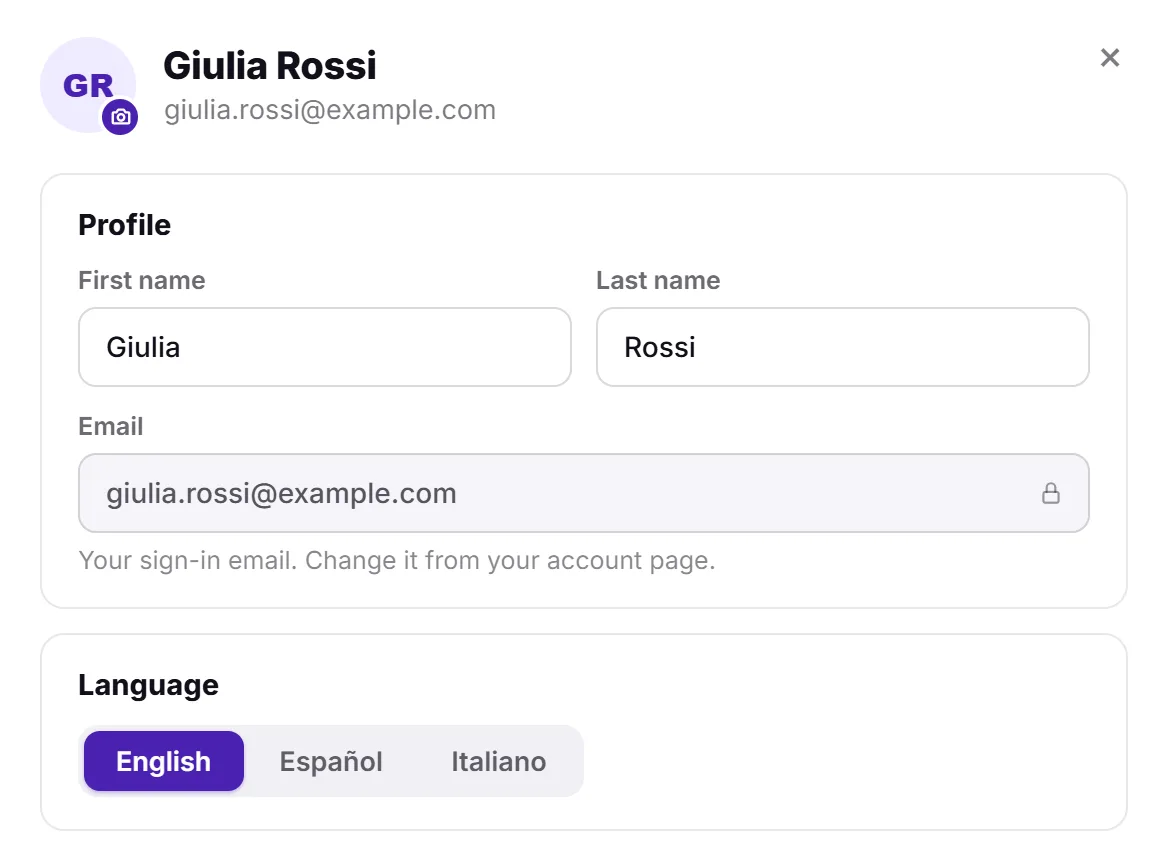
At the bottom of the sidebar, click the row with your name. The window opens with your name and your email at the top.
Change your name and language
- Step 1:
In Profile, edit First name and Last name.
- Step 2:
In Language, click English, Español or Italiano.
- Step 3:
Click Save changes at the bottom of the window. The sidebar shows the new name and the app switches to the chosen language.
The chosen language stays on this browser. To close without saving, click Cancel. If you have changed something, TourOperate asks whether you want to discard the changes.
Email is shown but can't be changed here: you change it from your account page.
Change your photo
- Step 1:
Click your photo or your initials at the top, or Change photo.
- Step 2:
Choose a JPG, PNG, WebP or GIF image of up to 10 MB. The photo is saved immediately.
Change your password
- Step 1:
In Security, click Change password. Your account page opens, where you set the new password.
Sign out
- Step 1:
In your user settings, click Sign out. Your TourOperate session closes.
Your workspace
Workspace shows which workspace you are in, with the Company and team settings link. Switch workspace appears if your sign-in belongs to more than one. See Switch workspace (Switch workspace).
If something goes wrong
- "Your name cannot be cleared here. Nothing was changed": type at least your first or last name, then click Save changes again.
- "Your changes could not be saved. Nothing was changed": click Save changes again. If it doesn't work, try again later.
- The photo doesn't upload: the message under the photo tells you why, for example "This photo is larger than 10 MB". Choose another image.
- After you change the language, the sidebar stays in English: its names are English in every language.