
Every colleague who uses TourOperate with you has their own account on your team. The whole team sees the same workspace. Admins can also change settings and invite other people.
Before you start
You must be an admin. A member doesn't see Invite member or the ⋯ button next to colleagues.
Invite someone
- Step 1:
In the sidebar, open Settings and click the Team tab. You see the team's members, with role and status.
- Step 2:
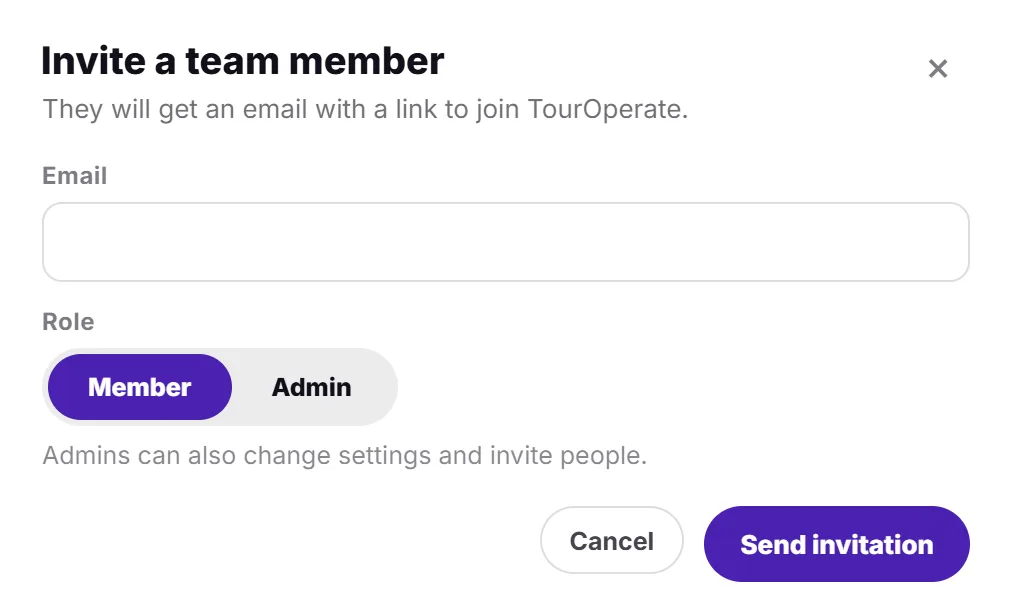
Click Invite member. Invite a team member opens.
- Step 3:
Type the address in Email.
- Step 4:
In Role, click Member or Admin. The window starts on Member.
- Step 5:
Click Send invitation. The window closes and "Invitation sent" appears.
What happens next
- The person gets an email with a link to join your company. The invitation expires after 30 days.
- Until they accept, their row shows "Invited · waiting", with Resend and Cancel invite. At the top, the count adds "1 invitation pending".
- When they create their account from the link, TourOperate automatically adds them to your workspace. See Create an account (Create an account).
Change someone's role or remove them
- Step 1:
In the person's row, click ⋯.
- Step 2:
Click Make admin or Make member: the menu offers the role the person doesn't have. "Role changed" appears.
- Step 3:
To remove the person from the team, click Remove from team instead.
- Step 4:
When asked "Remove [name] from the team?", click Remove. "Removed from the team" appears.
If something goes wrong
- "This person is already on the team or invited": look for their row. If the invitation is pending, click Resend.
- "The team needs at least one admin": make someone else an admin, then try again.
- Your own row, marked You, has no ⋯: you can't change your own role or remove yourself.
- "Only admins can manage the team": ask an admin to do it for you.