
Sign in to TourOperate with your email address and your password. If you have forgotten it, you reset it with a code you receive by email.
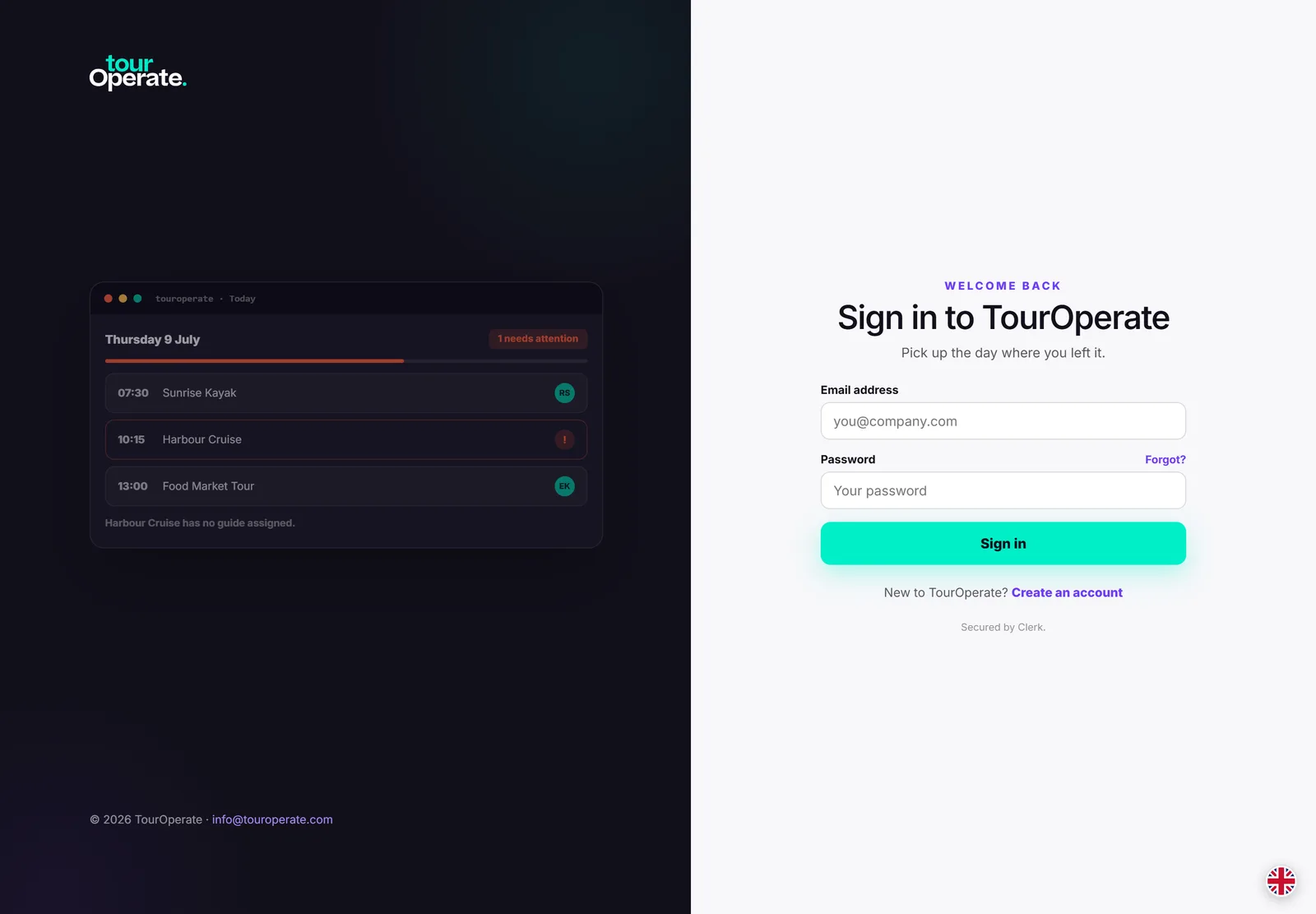
Sign in
- Step 1:
Open the sign-in page, titled Sign in to TourOperate.
- Step 2:
Type your email in Email address and your password in Password.
- Step 3:
Click Sign in. Control Room opens, or the next step of the guided setup if you haven't finished it.
To see the page in another language, click the flag at the bottom right and choose English, Español or Italiano.
Don't have an account yet? Click Create an account under the form. See Create an account (Create an account).
Reset your password
- Step 1:
On the sign-in page, click Forgot? next to Password. Reset your password opens.
- Step 2:
Type your email and click Send reset code. The page confirms it was sent.
- Step 3:
Type the code you received in Reset code and the new password in New password.
- Step 4:
Click Set new password. You enter TourOperate with the new password.
If TourOperate asks you to change your password while you sign in, the page is titled Set a new password. Type it in New password and click Set password.
Complete the extra check
After the password, TourOperate may show Verify this browser, if it doesn't recognize the browser, or Two-factor verification, if your account uses two-step verification.
- Step 1:
If you see several methods, choose one, for example Authenticator app or a code by email.
- Step 2:
Type the code in Verification code, or in Backup code if you chose a backup code.
- Step 3:
Click Verify. Signing in continues.
With a code by email or SMS, Resend code sends you a new one. Use a different method takes you back to the list of methods.
Turn on two-step verification
There is no setting to turn it on yourself. If your account requires it, a page to set it up appears after you sign in: follow the instructions and TourOperate continues. The Back to sign in link at the bottom takes you back to the sign-in page.
If something goes wrong
- "That password is incorrect": type it again, or click Forgot?.
- "We couldn't find an account with those details": check the email address.
- "Too many attempts. Please wait a moment and try again": wait a few minutes, then sign in again.
- "That code has expired. Request a new one": click Resend code and use the new code.
- The verification says it can't continue with the available method: click Back to sign in and start again. If it happens again, contact TourOperate support.
- A page saying "Authentication isn’t ready" appears: sign-in doesn't work on this installation. It isn't something you did: contact TourOperate support.