
When you click a departure in Control Room or in Schedule, its window opens. From here you see what still needs doing, assign resources, check the pax, attach files, read the costs and prepare the emails.
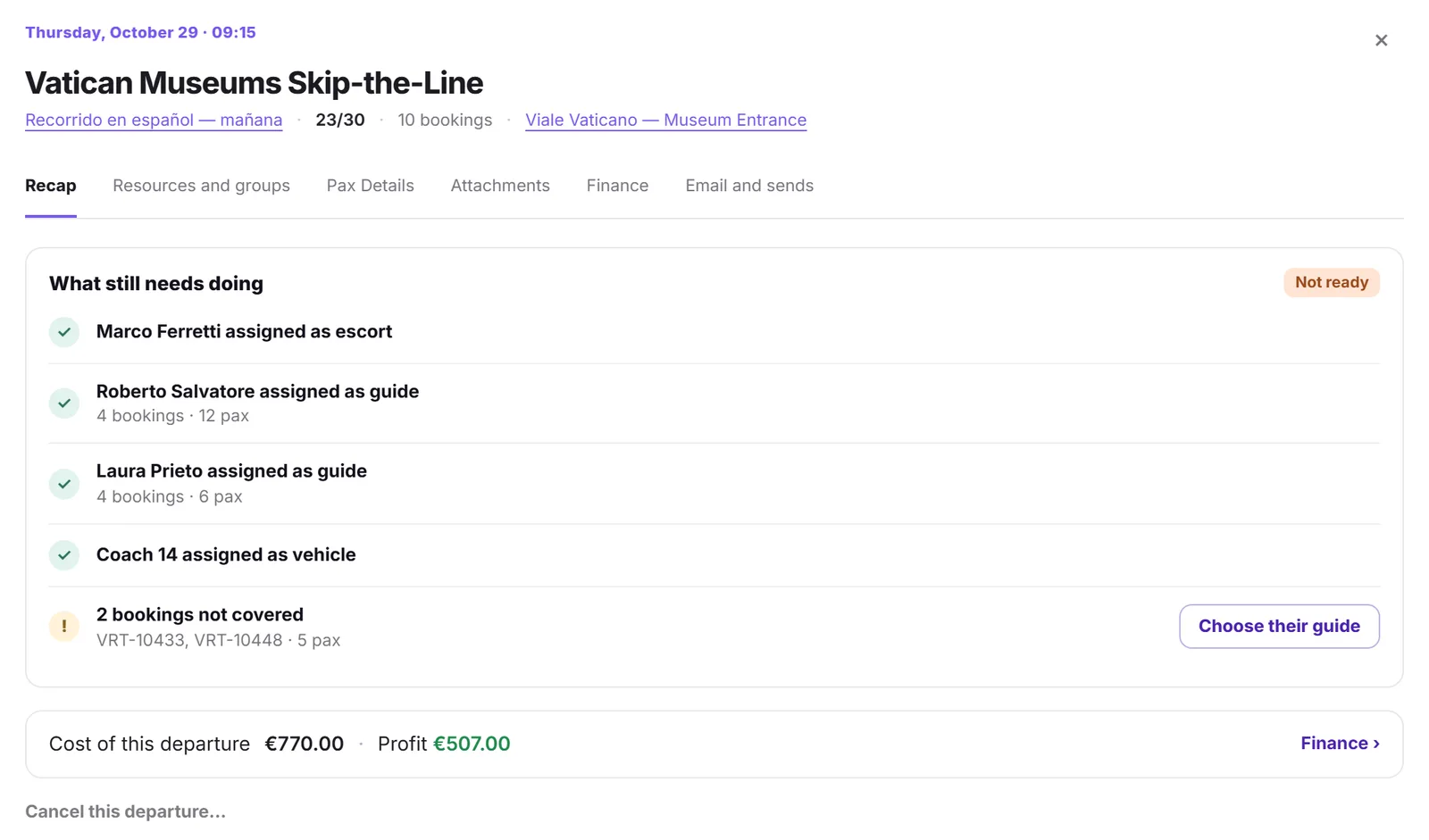
How the window is laid out
- At the top are the day and time, for example Thursday, October 29 · 09:15, and the product name, for example "Vatican Museums Skip-the-Line". The × on the right closes the window.
- Below the name a line sums up the departure: the operating profile, the pax and the total seats ("23/30"), the bookings ("10 bookings") and the meeting point. You can click the profile and the meeting point to see their details. Clicking "23/30" opens the Pax Details tab.
- Further down are the six tabs: Recap, Resources and groups, Pax Details, Attachments, Finance and Email and sends. The window always opens on Recap.
The six tabs
Recap
- What still needs doing lists with ✓ what is in place, for example "Laura Prieto assigned as guide". With ! it lists what is missing, with the button to do it, for example Assign guide or Choose their guide.
- To the right of the title you read Ready or Not ready. See Get a departure ready (Get a departure ready) and What still needs doing and alerts: what each item means (What still needs doing and alerts: what each item means).
- A line sums up the cost and the profit, with a link to the Finance tab.
- At the bottom is Cancel this departure….
Resources and groups
- There is a section for each required resource type, for example "Guide". At its head you read how many are assigned ("2 of 2 guides assigned"). Below it you read the pax covered and the profile rule ("18 of 23 pax covered · Profile rule: 2 guides per departure").
- Each assigned resource has its own card: name, cost, phone and email, Change and Remove. Below it are the bookings it takes.
- No guide yet gathers the bookings that don't have a guide yet.
See Assign guides, vehicles and escorts (Assign guides, vehicles and escorts), Split bookings between guides (Split bookings between guides) and Replace a resource (Replace a resource).
Pax Details
- At the top are the totals, for example "23 pax · 10 bookings", and the categories ("ADULT 19 · CHILD 4").
- Each booking has a row with its pax and who takes it, for example "Marco Ferretti · Coach 14 · Roberto Salvatore".
- The fields shown are the ones chosen in the operating profile. To change them, click Change fields.
- For the pax of the whole day, use the Operations → Pax Details page: see The Pax Details page (The Pax Details page).
Attachments
- Files for this departure lists each file with its type, its size and who it goes to. Recipients changes who receives it; Download downloads it.
- With Add a file and Choose file you add a new one, a PDF or an image. See Attach files to a departure (Attach files to a departure).
Finance
- Sold is the amount of the bookings sold, Costs what the resources cost, Profit the difference.
- Each resource has its own cost, for example Laura Prieto as guide, per departure, from a cost rule: €150.00. A cost with no rule shows as "not set" and counts as zero: set it with Set cost ›.
Email and sends
- Who gets it lists the assigned staff with the status of their email, for example Not sent or Out of date. Each staff member gets a single email with all their departures of the day.
- Preview and send opens the preview. The email goes out only when you click Send this packet. See Check and send the daily packet (Check and send the daily packet).
- Email and phone aren't edited here, but on the Manage Resources page.
Ready and Not ready
- No button marks the departure as ready. TourOperate works it out automatically: it is Ready when nothing with a ! is left in What still needs doing.
- If something changes, for example a new booking comes in, the status updates automatically.
- A cancelled departure can no longer be changed.
Good to know
- The window is the same from Control Room and from Schedule, and only one opens at a time.
- What you change in one tab shows in the others without closing the window.
- A departure that has already started shows the How it ran panel in Recap instead of the things to do.
- If "Conflict — the state changed underneath…" appears, the departure changed while it was open. Close the window, open it again and try again.