
Every departure has requirements, for example two guides, an escort and a vehicle. Assigning means choosing who covers each requirement. The list shows who is free first, and says why the others aren't.
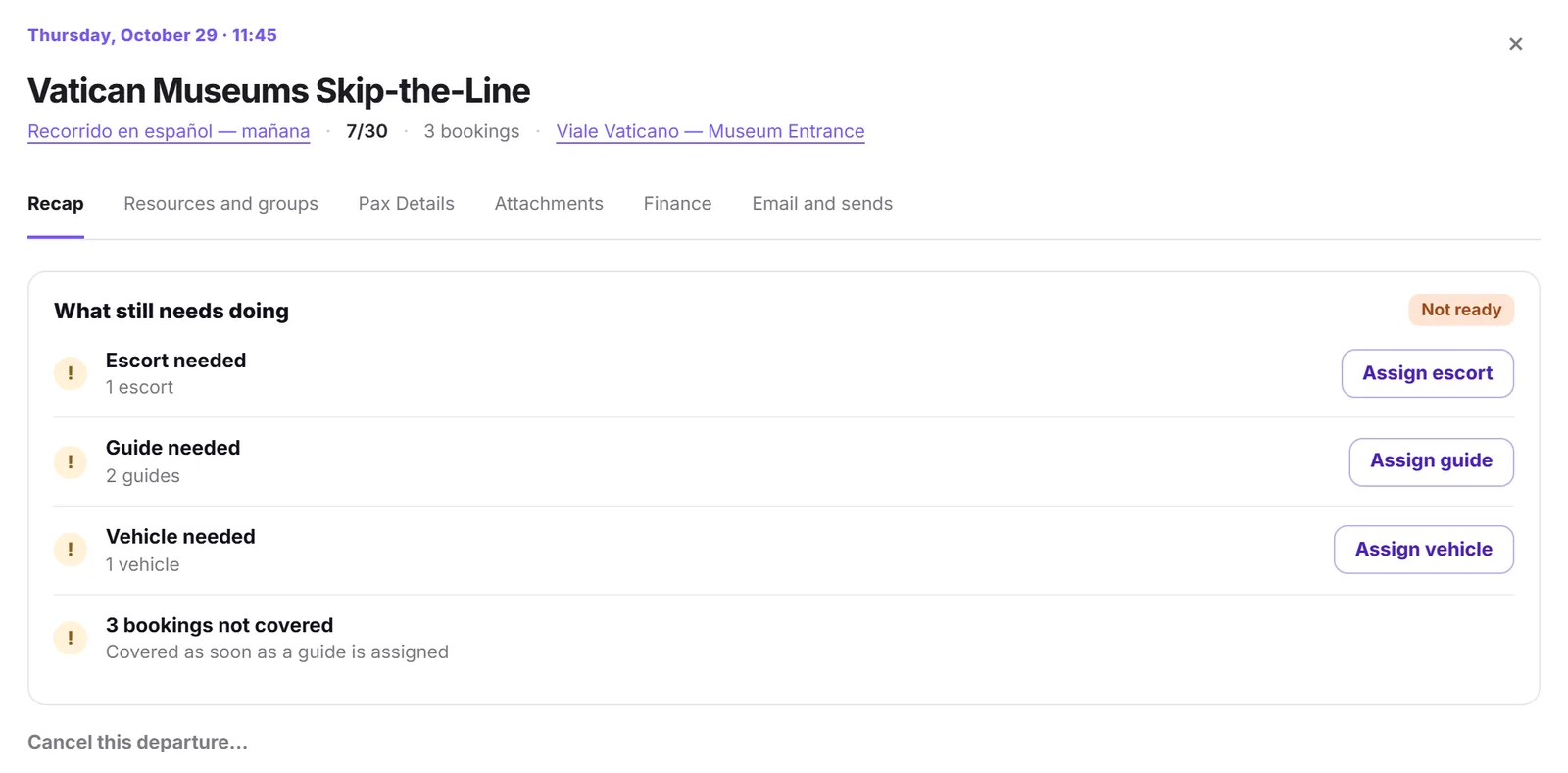
At 11:45, for example, the Vatican Museums departure has nobody yet. It needs two Spanish-speaking guides, an escort and a vehicle.
Before you start
The staff member or vehicle must exist on the Manage Resources page, with the languages they speak.
Steps
- Step 1:
Open the departure: click its row in Control Room or its card in Schedule (the weekly view). The window opens on Recap.
- Step 2:
In What still needs doing, find the line for what is missing, for example "Guide needed" with "2 guides" below it.
- Step 3:
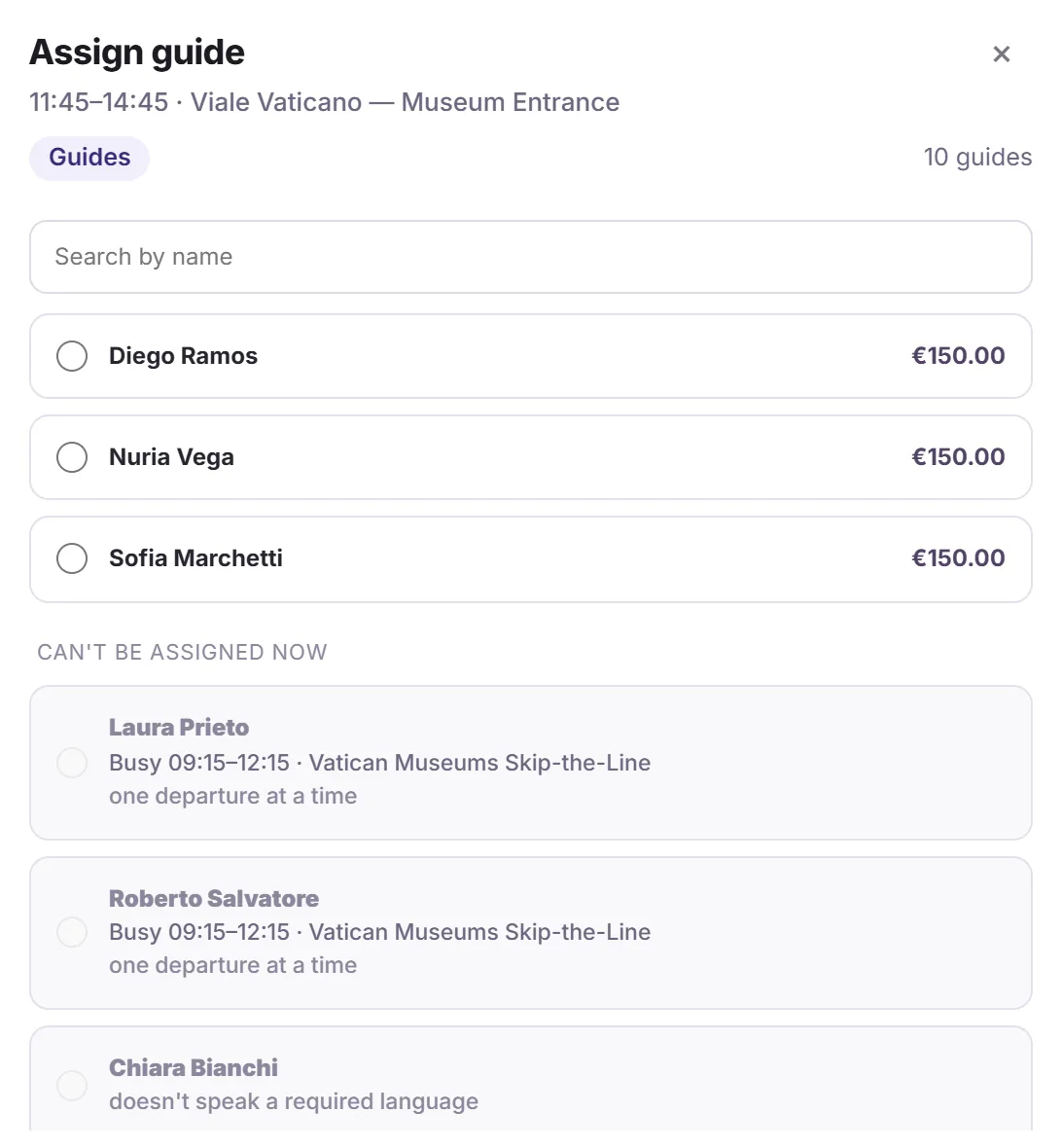
Click Assign guide. The list of guides who speak the departure's language opens, with the free ones at the top. At the top you read how many they are out of all the guides on your roster.
- Step 4:
To look for someone, type their name in "Search by name".
- Step 5:
Click the name, for example Diego Ramos. The choice is saved immediately and "✓ Saved" appears.
- Step 6:
In the list you read "Diego Ramos assigned as guide". If two guides are needed, click Assign guide again for the second.
The same button is also on the Resources and groups tab, under the resource type. For escorts and vehicles the buttons are Assign escort and Assign vehicle.
Under Can't be assigned now the list shows in grey the people you can't choose, with the reason. For example: "Busy" with the time of the other departure, "doesn't speak a required language" or "doesn't cover this location".
Remove a resource
- Step 1:
On the Resources and groups tab, on the resource's card, click Remove.
- Step 2:
In the Remove this resource window, click Remove.
For a few seconds "✓ Removed" appears, with the bookings that go back without a guide. To go back, click Undo.
What happens next
- If there's only one guide, they get all the bookings. If several guides share the departure, give each one their own: see Split bookings between guides (Split bookings between guides).
- Their cost appears on the Finance tab.
- When nothing with a ! is left in What still needs doing, the departure becomes Ready. See Get a departure ready (Get a departure ready).
- To change a resource without losing the bookings it takes, see Replace a resource (Replace a resource).
If something goes wrong
- The list says, for example, "No Spanish-speaking guide is free at 11:45": check the reasons under Can't be assigned now. Often it's enough to complete the resource in Manage Resources, for example its languages.
- The list says "This departure has no language, so all guides are shown": set the language in the operating profile, then try again.
- After the click, a message says nothing was saved, and why: for example the language, or another departure at the same time. Choose another resource.
- "Conflict — the state changed underneath…" appears: the departure changed while it was open. Close the window, open it again and try again.
- You don't see the buttons: the departure is cancelled or has already been recorded as run.