
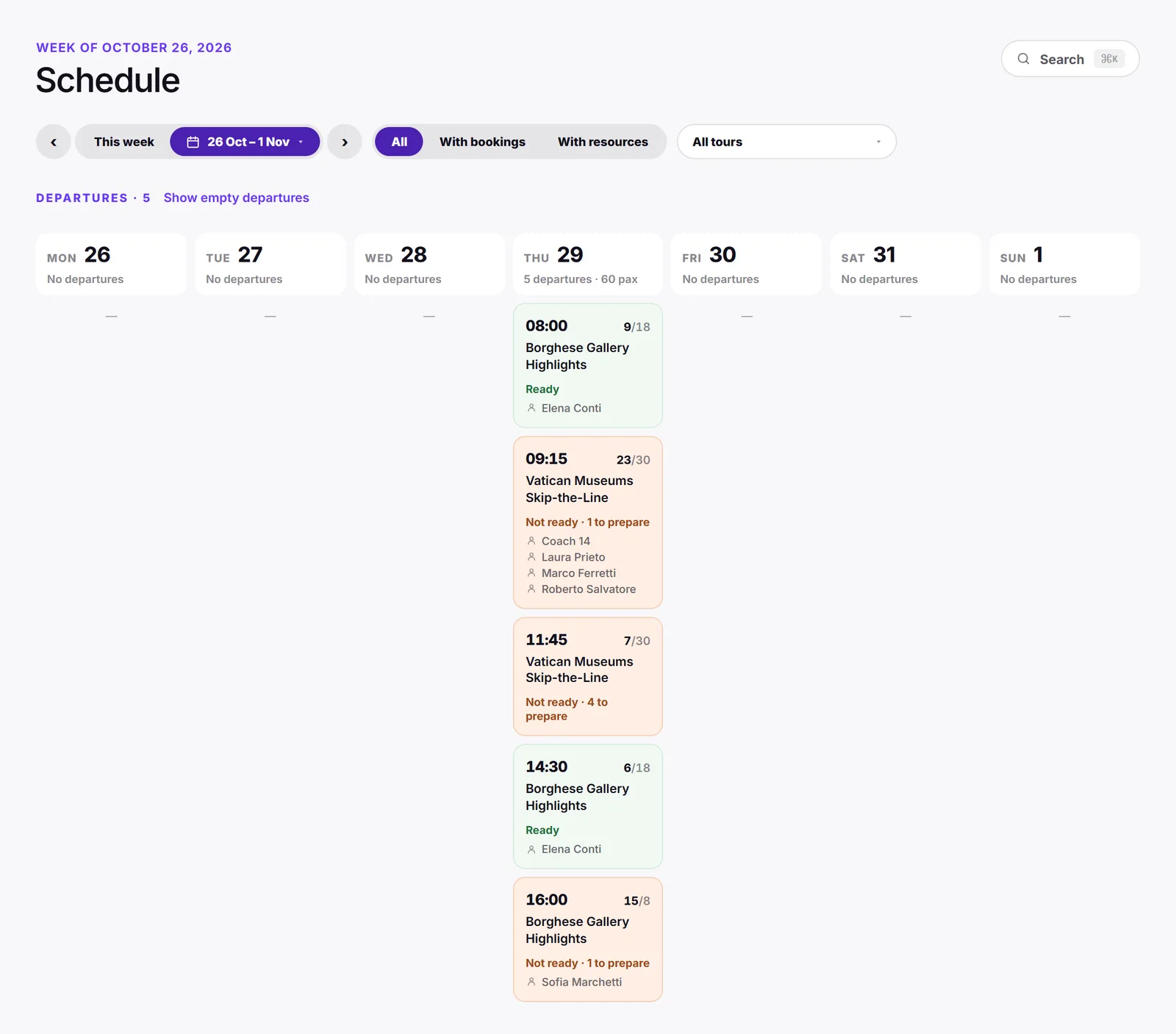
Control Room and Schedule usually show only departures with at least one booking or an assigned resource. The others appear only if you click Show empty departures. Start from Schedule: you see the whole week at once.
For example, a departure with a booking but no resources disappears from Schedule if you click the With resources filter.
Look for it in Schedule
- Step 1:
In the sidebar, open Operations → Schedule.
- Step 2:
Go to the right week with Previous week or Next week, or click the button with the dates and choose a day in the calendar.
- Step 3:
Click the All filter, then Show empty departures. Now you see every departure of the week, even without bookings or resources.
- Step 4:
Check that the tour selector says All tours. If not, open it and click Select all tours, or tick the departure's tour.
- Step 5:
If the week is full, click Load more departures below the week.
It's in Schedule but not in Control Room
Control Room shows one day at a time and, usually, only departures with a booking or an assigned resource. Cancelled bookings don't count.
- Step 1:
Check the day with Today, Tomorrow or Pick a date.
- Step 2:
Check that the tour selector next to the date says All tours. If not, open it and click Select all tours.
- Step 3:
Click Show empty departures, next to the Departures heading.
When you assign a resource to the departure, or a booking comes in, the departure appears even without that button. See Assign guides, vehicles and escorts (Assign guides, vehicles and escorts).
If the departure is today or tomorrow and has something to do, you also find it in Alerts. Click its card: Control Room switches to that day and opens the departure.
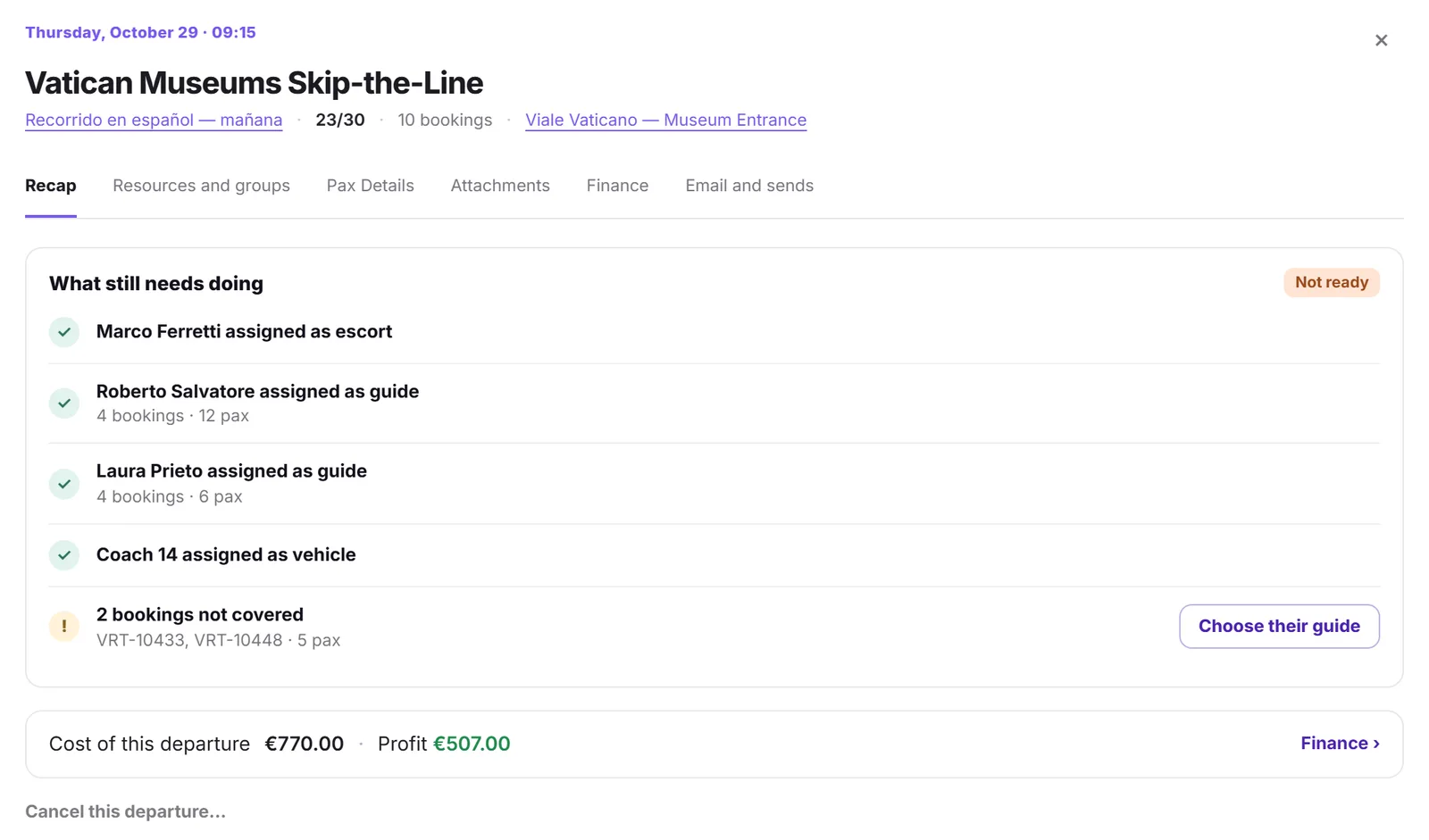
It's in neither
Then the departure hasn't arrived from Bókun yet. TourOperate creates departures from Bókun availability, even when the product doesn't have a confirmed operating profile yet.
- Step 1:
Check in Bókun that the tour has availability on that date and at that time.
- Step 2:
Open Control Room on that date. If you read that the import from Bókun stopped, click "See Settings → Bókun" and check the connection.
- Step 3:
Wait for the departures to be added: TourOperate creates them automatically, with no other steps.
A departure without an operating profile still appears, with Profile missing. See Set up an operating profile (Set up an operating profile).
If something goes wrong
- A day in Schedule says "No departures": no departure that day matches the filters and tours you chose. Click All and Show empty departures.
- A day says Not read: it couldn't be loaded. Click Try again below the week.
- No tours selected appears instead of the departures: open the selector and choose some tours.