
Schedule shows your departures one week at a time, Monday to Sunday. Use it to see the week at a glance and to find departures that are still empty. Open it from the sidebar with Operations → Schedule; the page title is the same.
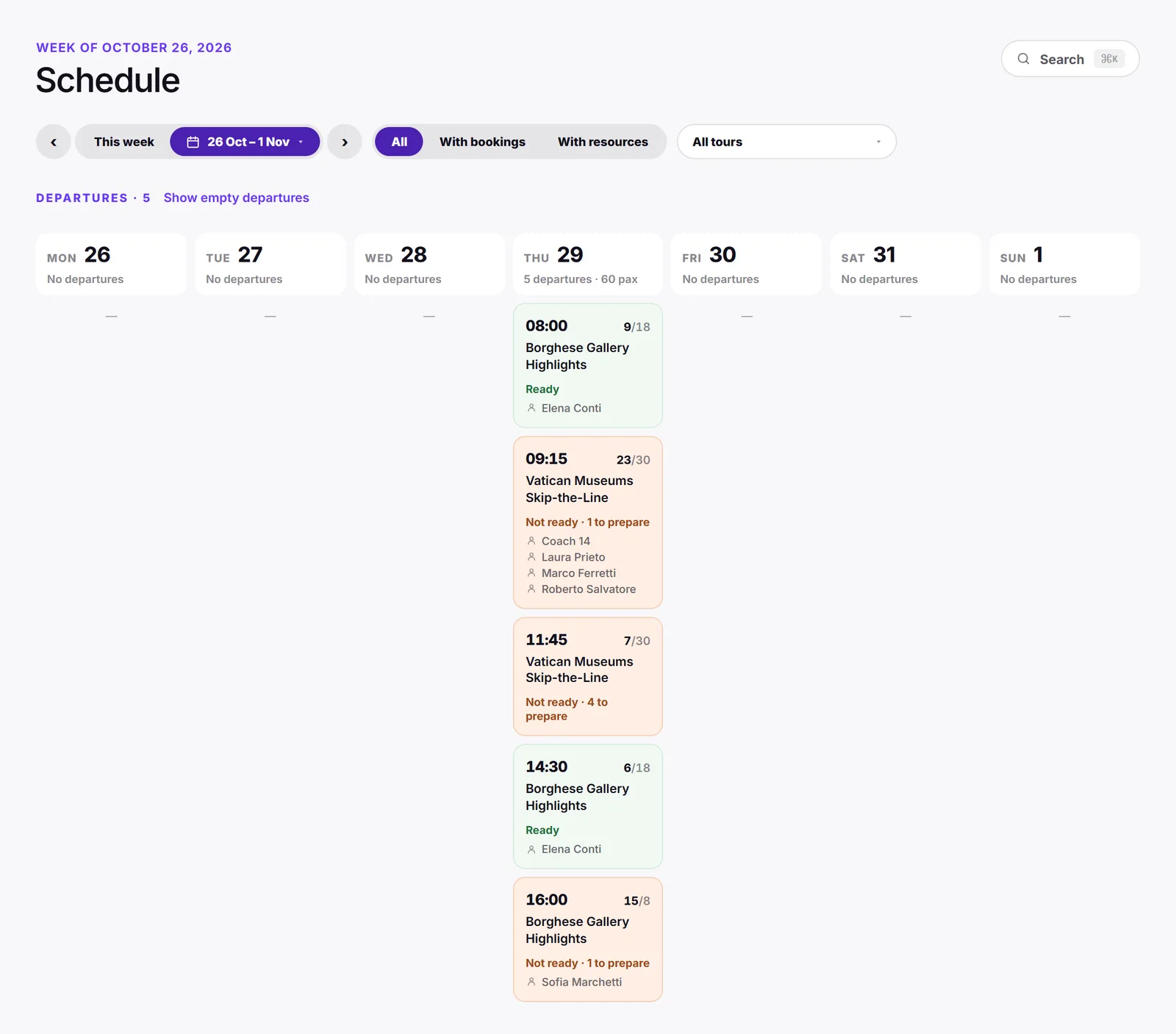
How the page is laid out
- At the top is the week you're looking at, for example the week of October 26, 2026. By default the page opens on the current week.
- Below the title, on one line, are the arrows for the previous and next week, This week and the button with the dates. Then come the All, With bookings and With resources filters and the tour selector.
- Above the week, "Departures · 5" counts the departures shown. Next to it is Show empty departures.
- In the middle are seven columns, one per day. At the top of each column you read the day and the total, for example "5 departures · 60 pax". Today is marked Today.
- Each departure is a card with the time, the pax and the total seats (for example "23/30"), the tour, the status and the assigned resources. A day with no departures shows "No departures".
What the signals mean
Each card's status is the same one you see in Control Room.
- Ready: the profile is confirmed, the required resources are assigned and every booking is covered.
- Not ready: something is still missing. Next to it you read how many things, for example "Not ready · 4 to prepare" for the 11:45 Vatican Museums departure.
- Done: the departure is ready and every assigned resource's email has been sent and accepted.
- Profile missing, Not confirmed or No operations: these are about the departure's operating profile. See Control Room (Control Room).
- Date only: the departure has a date but no start time.
- Not read: the page couldn't read that day. It doesn't mean the day is empty.
What you can do from here
- To change week, click the Previous week and Next week arrows. To go back to today, click This week.
- To jump to another week, click the button with the dates. The Choose a week calendar opens: click a day to open its week.
- To see only departures with at least one booking, click With bookings. To see only those with an assigned resource, click With resources. All removes the filter.
- To choose tours, open the All tours selector and choose the ones you care about.
- If a day has many departures, click Load more departures below the week.
- To open a departure, click its card. The same window as in Control Room opens: see The departure window: the six tabs (The departure window: the six tabs).
Good to know
- With All you see departures with a booking or an assigned resource. To see the others too, click Show empty departures: it only appears with All.
- If the week has nothing booked or assigned, you read "No departures with bookings or resources this week". From there you can click Show empty departures or Back to this week.
- Week, filters and tours aren't saved: when you come back to the page you start again from the current week, with All and all tours.
- If a day shows Not read, click Try again below the week. If you're looking for a departure and can't find it, see I can't find a departure (I can't find a departure).