
TourOperate always tells you why a departure isn't in order. A task keeps the departure Not ready until you resolve it. A warning needs checking, but doesn't change the status.
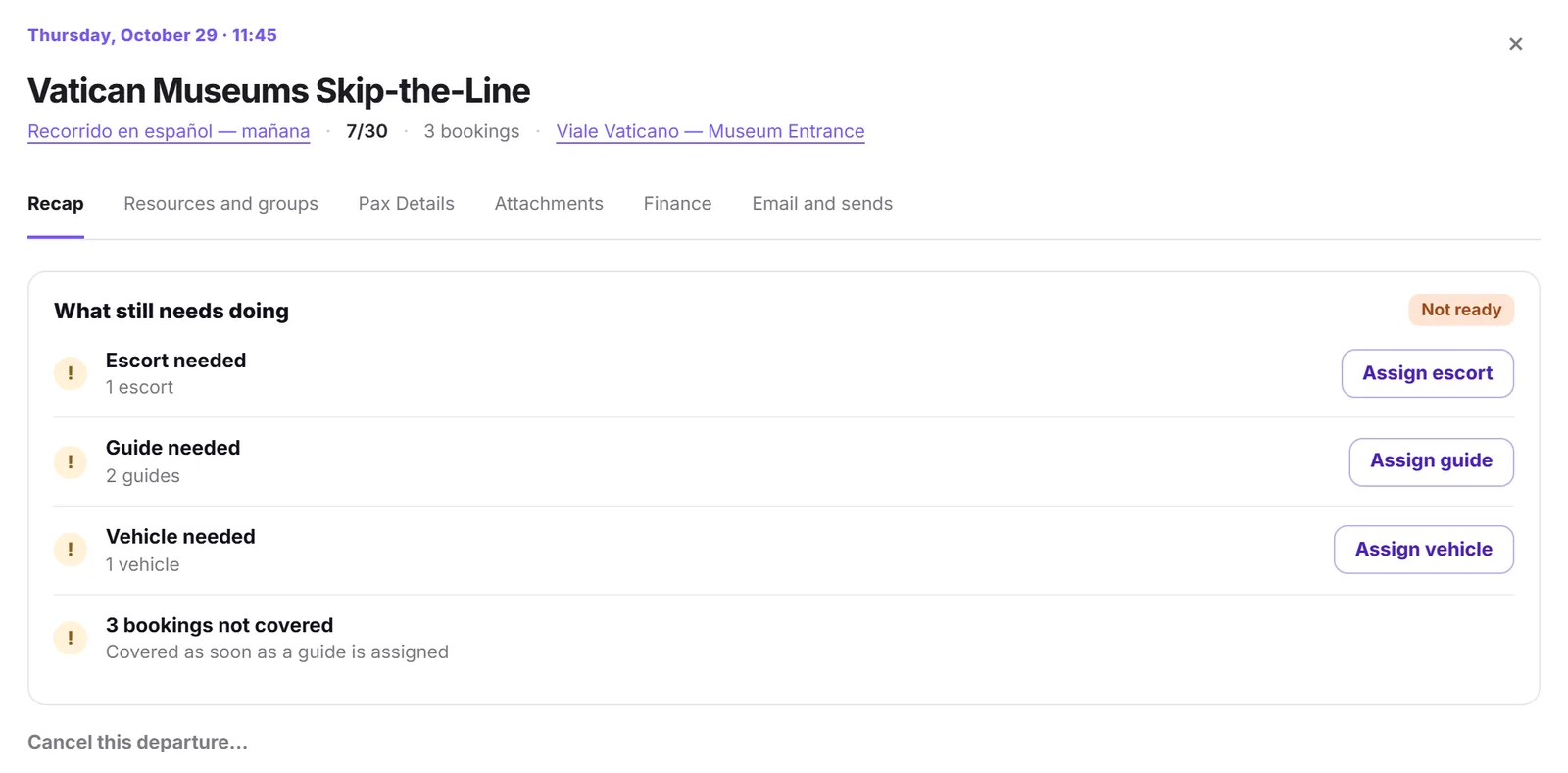
Where you find them
- In the departure window, on the Recap tab, under What still needs doing. Tasks have a ! and, almost always, a button. Warnings come after them, with Mark as checked.
- In Control Room, in the Alerts panel: one card for each departure today and tomorrow with something to do. The card names the problem, for example "Guide missing". It is red if the departure starts within an hour. Click it to open the departure.
Someone is missing
- "Guide needed", "Escort needed", "Vehicle needed" or "Driver needed": click the row's button, for example Assign guide. See Assign guides, vehicles and escorts (Assign guides, vehicles and escorts).
- "Driver needed" with "Vehicle rule: 1 driver per vehicle": the assigned vehicle always needs a driver.
- "2 bookings not covered": click Choose their guide and give each booking to a guide. See Split bookings between guides (Split bookings between guides). If below it you read "Covered as soon as a guide is assigned", assign the guide first.
- "Record prepared … · … missing": a quantity is missing, for example of headsets. Click Open in Resources & groups and record how many you prepared.
The assigned resource doesn't fit
Click Open in Resources & groups and use Change on the resource's card. See Replace a resource (Replace a resource).
- "Replace unsuitable Resource · …": the person doesn't speak the required language, lacks a skill or isn't the right type.
- "Resolve the assignment conflict for …": the resource is already working another departure at the same time. Take them off one of the two, with Remove, or replace them.
- "Move bookings or replace …": the resource has more passengers than it can carry. Move some bookings or choose a resource with more room.
- "Coach 14 · Over seats: …": as above, but also counting guides and escorts.
To check outside the departure
These items have no button: there is an explanation below them. Sometimes there is Inspect booking.
- "Check booking status" or "Check booking-line status": Bókun doesn't send a clear status. Check the booking in Bókun.
- "Review booking setup": the booking needs fixing in Bókun.
- "Review over-capacity bookings · …": the departure has more passengers than places. Check in Bókun.
- "Review the departure time", "Date-only departure" or "Start time not confirmed by Bókun": there is no reliable time. The resources needed are worked out once Bókun confirms it.
- "Set the required … quantity": the operating profile doesn't say how many are needed. Complete it.
Profile and emails already sent
- "This product has no Operating Profile yet": click Set up profile.
- "… is not confirmed yet": the profile is only proposed. Click Confirm profile.
- "This departure uses an older version of its Profile": click Review change. See Get a departure ready (Get a departure ready).
- "… was briefed about this departure and …": someone was removed, or the departure was cancelled, after the email. The app doesn't send the notice: contact them yourself.
Warnings: check and mark
Check each warning. Then click Mark as checked, write a note if needed and confirm. The warning stays in grey with who checked it and Undo.
- "Doesn't cover this location": add the area to the resource on Manage Resources, or assign someone who covers it.
- "Works in two places on the same day": make sure they have time to get from one to the other.
- "May overlap another departure": one of the two has no duration. Add it in the profile or check the times yourself.
- "No longer asked for by the Profile": remove the assignment if it's no longer needed.
- "The product changed in Bókun · check the Profile", or a variant with the time: check the profile.
- "Sold under several Profiles · not split yet", "Assigned before the split · check the resources" or "Bookings not matched to a Profile · check their rates": the departure mixes groups from different profiles. Follow the explanation below the warning.
Good to know
- A task can't be ticked off: you resolve it by doing the work.
- A checked warning opens again if the situation changes.
- In Control Room, a departure with tasks and warnings also shows "1 to check".
- The Alerts panel shows only today and tomorrow.