
Here you see what the resources who worked a period's departures cost you, and what you still have to pay. You open it with Reports → Cost Reports; the page has the same name.
The amounts come from the cost rules. Where a rule is missing, the cost counts as 0 and the page tells you so.
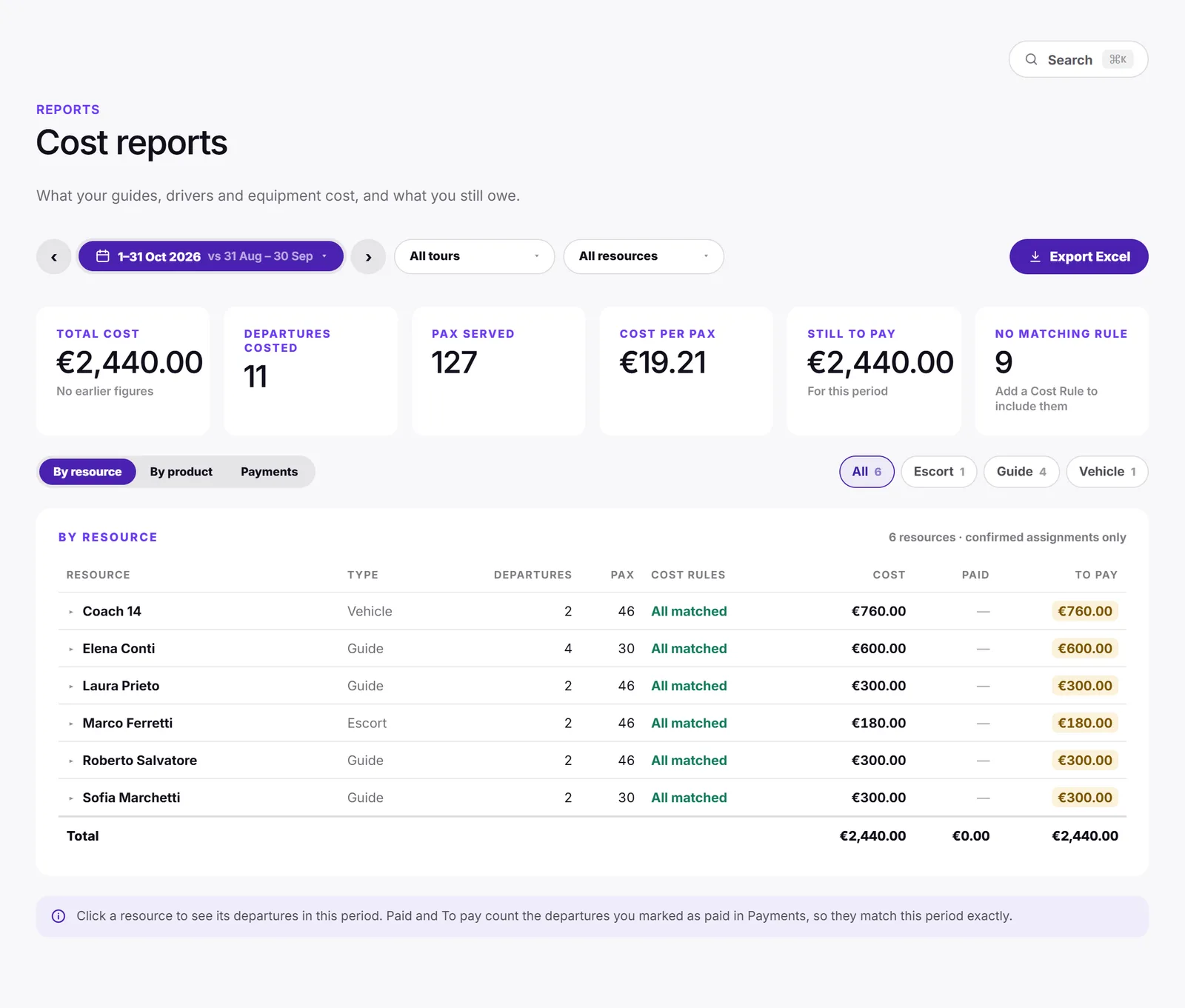
How the page is laid out
- At the top, the period with the ‹ and › arrows, the All tours and All resources filters and the Export Excel button. The page opens on the current month, for example 1–31 October 2026.
- Next to the period, "vs" and the dates of the previous period of the same length, used for comparisons (here 31 August – 30 September).
- Below, six tiles: Total cost, Departures costed, Pax served, Cost per pax, Still to pay and No matching rule.
- In the middle, three views: By resource, By product and Payments.
- By resource has one row per resource. Above the table, a filter by type with counts: All 6, Guide 4, Escort 1, Vehicle 1.
- The columns are Resource, Type, Departures, Pax, Cost rules, Cost, Paid and To pay. The total row is at the bottom.
What the signals mean
- No matching rule: how many of the period's assignments find no cost rule, plus the places on departures that have nobody assigned yet. In the sample month there are 6.
- "All matched", in the Cost rules column: every departure of that resource has its rule. In the sample month Coach 14 costs €380.00, Elena Conti €300.00 for two departures.
- Before you add a rule, "⚠ 1 not set" appears, with the Add rule › link. The Cost column shows "0.00 · not set": the cost counts as 0 until you add the rule, so the total is lower than the real one.
- "6 resources · confirmed assignments only": the report counts only the staff and vehicles confirmed on departures.
- Total cost shows the change against the previous period. If there were no costs before, "No earlier figures" appears.
- Still to pay is what you owe for the period, minus the departures you marked as paid.
What you can do from here
- To change the period, click ‹ or ›: the period moves by the same length. To choose the dates, click the period, choose start and end and click Apply.
- To narrow the report, click All tours or All resources and choose what to keep.
- To see a resource's departures, click its row. Next to each departure, Open shows the Departure costs window with pax, revenue, cost and profit.
- To add a missing rule, click Add rule ›: the Cost Rules page opens. See Cost rules and a departure's costs (Cost rules and a departure's costs).
- To see costs per tour, click By product. Here you also find Revenue (net) from Bókun and Profit.
- To keep track of what you have paid, click Payments. You see the year split into months, with what you owe and what you have paid each resource.
- Click a resource's month to see its departures. At the bottom, the "Record payment for …" button opens the Record payment window.
- In the window, untick the departures you are not paying now, choose the date in Paid on and confirm with "Mark … as paid".
- You can also open the same window with + Record payment, at the top right.
- To download the report, click Export Excel. The file follows the period and filters you chose.
Good to know
- TourOperate doesn't pay anyone: Payments is only your own record.
- A paid departure keeps the amount it had that day. If you change a rule later, the earlier figures are not rewritten.
- The period can be at most 400 days long.
- In the Departure costs window you can set an amount for that departure only. See Cost rules and a departure's costs (Cost rules and a departure's costs).