
Here you see what you sold in a period, through which channels and for how many passengers. You open it with Reports → Sales Reports; the page has the same name.
The figures come from the bookings TourOperate receives from Bókun.
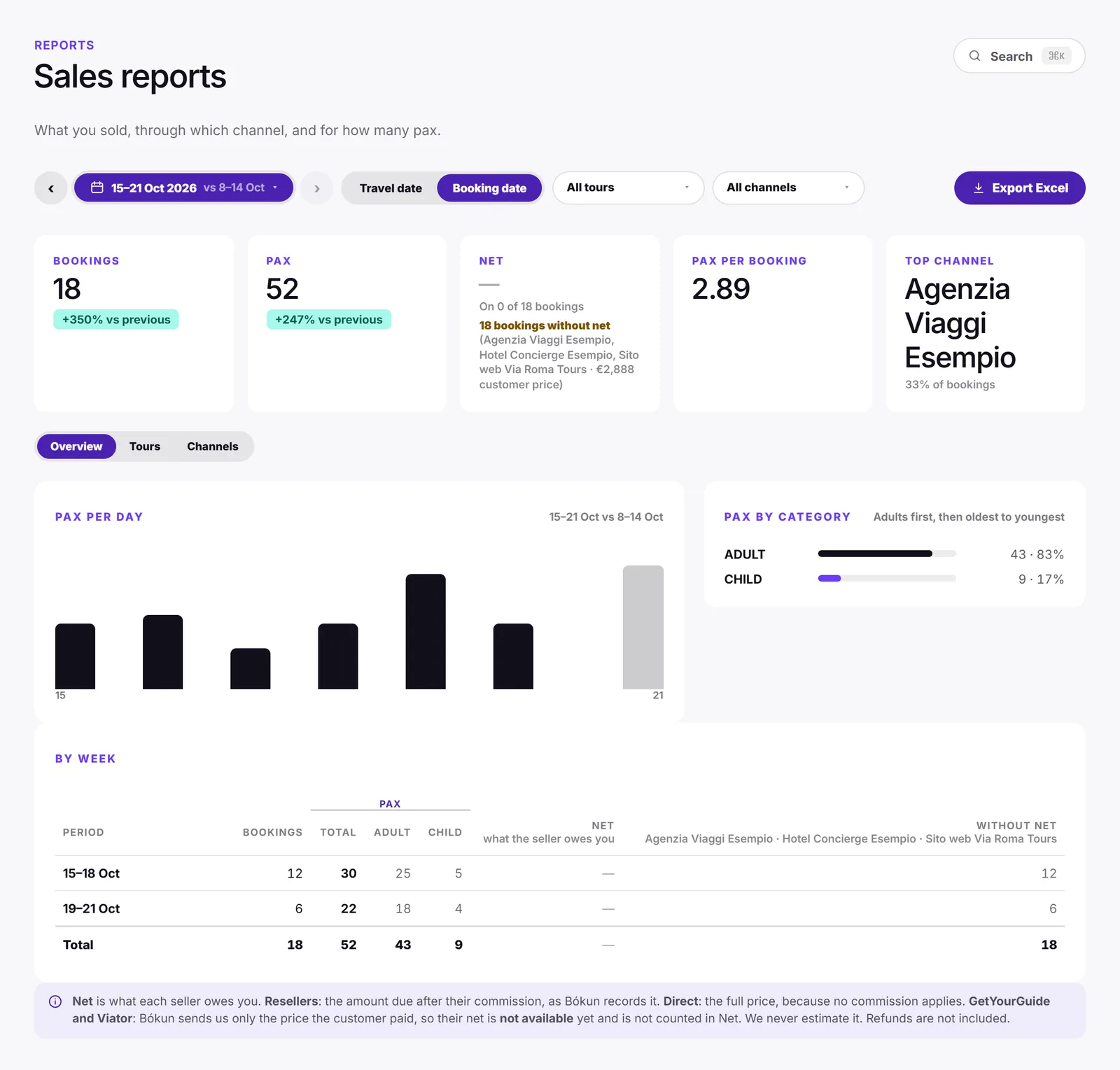
How the page is laid out
- At the top, the period with the ‹ and › arrows. The page opens on the last 7 days up to today, compared with the 7 before: for example 25 September – 1 October 2026 against 18–24 September.
- Next to it, two buttons: Travel date and Booking date. Then the All tours and "All channels" filters and the Export Excel button.
- Below, when there are sales, five tiles: Bookings, Pax, "Net", Pax per booking and "Top channel".
- In the middle, three views: Overview, Tours and "Channels".
- Overview: pax per day against the previous period, pax by category and a table by week.
- Tours: one row per tour, with bookings, pax by category and net.
- "Channels": one row per channel, sorted by net, marked "Direct", "Reseller" or "OTA".
What the signals mean
- Travel date counts bookings on the day the service runs. Booking date counts them on the day the customer booked.
- "Net" is what each seller owes you. For a reseller it is the amount after their commission; for a direct sale it is the full price.
- For GetYourGuide and Viator, Bókun sends only the price the customer paid. Their net shows as "Not available" and is not counted in "Net".
- Under "Net", a line such as "On 9 of 10 bookings" tells you how many bookings have a net amount. The others are shown separately, for example "2 bookings without net".
- Each tile compares the period with the previous one, for example "+12% vs previous".
- "No bookings in these dates": no tour with these filters runs in the period. Click "Clear filters" or try other dates.
What you can do from here
- To change the period, click ‹ or ›. To choose the dates, click the period: you can set a start and end, or choose "This month" or "Last month".
- To count sales on the day they were made, click Booking date.
- To look at only some tours or channels, click All tours or "All channels" and choose what to keep.
- To see a departure, open the Tours view and click the tour. Then click Open next to the departure.
- The window shows the departure's pax, bookings, net and cost.
- At the bottom, Open in Control Room takes you to the departure in Control Room.
- To download the report, click Export Excel. The file follows the period, the date basis and the filters you chose.
Good to know
- Cancelled bookings don't count. Bookings cancelled with a charge, however, do.
- Refunds are not included in "Net".
- The period can be at most 92 days long.
- Resource costs are on the Cost Reports page: see The Cost Reports page (The Cost Reports page).