
A cost rule says how much you pay a guide, a driver, a vehicle or a piece of equipment when it works a departure. For example, with the rule "Every Guide · Any tour · All year · €150 per departure", Laura Prieto, guide on the 09:15 Vatican Museums, costs €150.00. Without a rule the cost counts as €0 and is marked "not set".
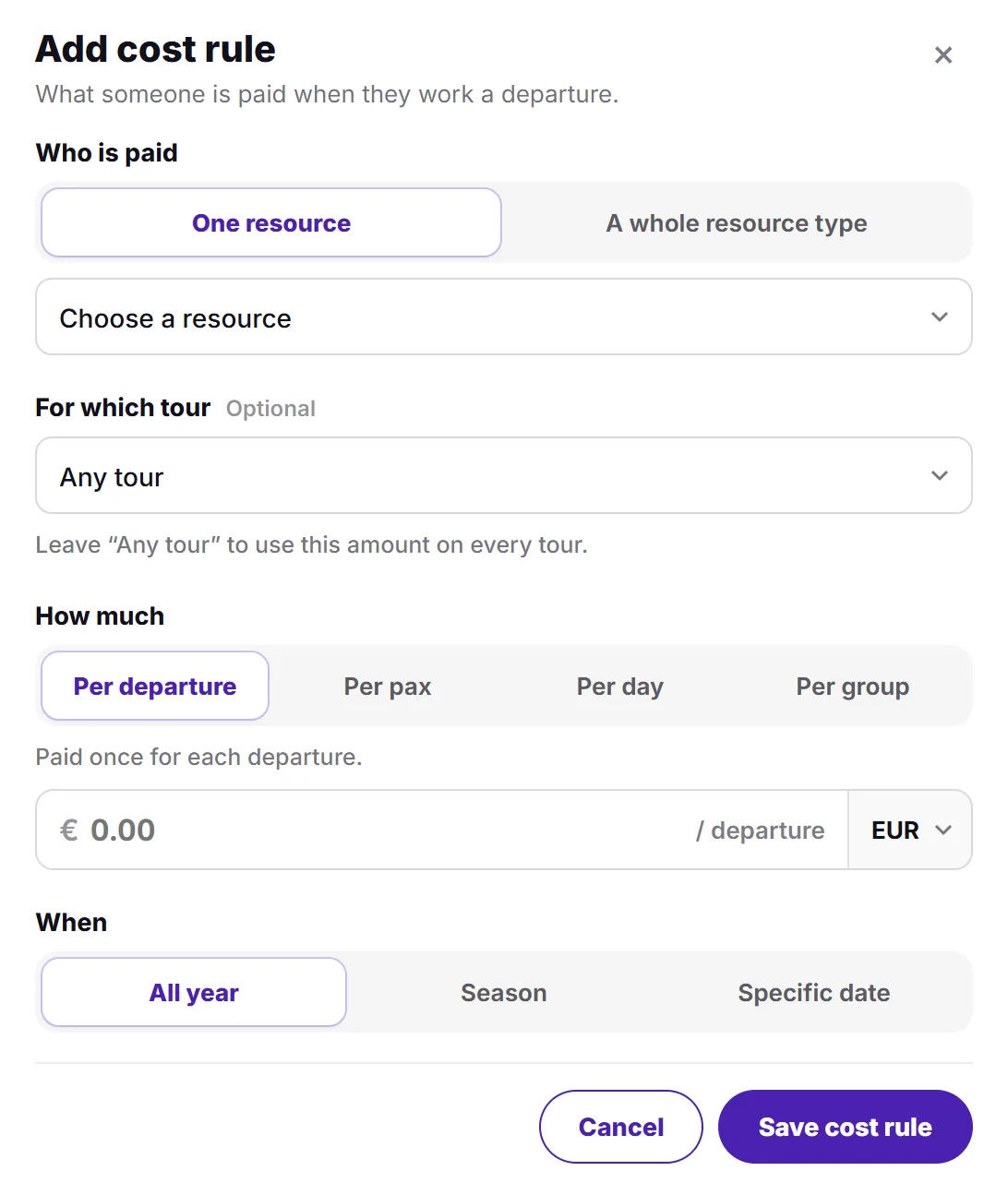
Add a cost rule
- Step 1:
Open Resources → Cost Rules. The page with the same name opens.
- Step 2:
Click Add cost rule.
- Step 3:
In Who is paid, click One resource and choose the resource, for example Laura Prieto. To pay every guide the same way, click A whole resource type.
- Step 4:
In For which tour, choose the tour, for example Vatican Museums Skip-the-Line. Leave Any tour if the amount applies to every tour.
- Step 5:
In How much, click Per departure, Per pax, Per day or Per group. Then type the amount and choose the currency.
- Step 6:
In When, click All year, Season or Specific date. For a season, type its name and choose the From and To dates.
- Step 7:
Check the summary at the bottom and click Save cost rule.
Which rule wins
When several rules fit the same departure, the app uses the first one in this order. Amounts are never compared or added up.
- First: the amount typed on the departure.
- Then: this person on this tour, first for a specific date and then for a season.
- Then: this tour, first for a specific date and then for a season.
- Then: this person on any tour, for a specific date or season.
- Then: the all-year rates.
- Last: no rule. The cost counts as €0 and is marked "not set".
The rule's window shows its place in the order, for example "Step 2 of 8".
Where you see the cost
- In the departure window, the Recap tab shows Cost of this departure.
- The Finance tab shows Sold, Costs and Profit, that is Sold − Costs.
- Under Costs there is a row for each resource, with the rule used and the amount. If the rule is missing, No cost rule appears: click Set cost › to open the Cost Rules page.
- On Resources and groups the cost shows next to the name of each assigned resource, for example "Marco Ferretti · €90.00". Without a rule you see "0.00 · not set" and the same link.
- All costs are in Reports → Cost Reports: see The Cost Reports page (The Cost Reports page).
Enter an amount for one departure only
This is the first step of the order: it beats every rule.
- Step 1:
Open Reports → Cost Reports and click the resource's row, for example Laura Prieto.
- Step 2:
Click Open next to the departure. Departure costs opens.
- Step 3:
On the resource's row, click Set price, type the amount and click Save price.
To go back to the rules, click Use rules.
What happens next
The Finance tab and the Cost Reports page use the new amount. Departures already marked as paid keep the amount they had.
If something goes wrong
- "These dates overlap … rule …": there is already a rule for the same resource, tour and kind on those dates. Change the dates or click Open that rule.
- The cost stays "not set": the rule doesn't apply to that departure. Check the tour, dates and resource.