
A resource type is a capability a departure can ask for, like a guide or a vehicle. When the built-in types aren't enough, you create your own: for example a skipper for boat trips, or audio guides.
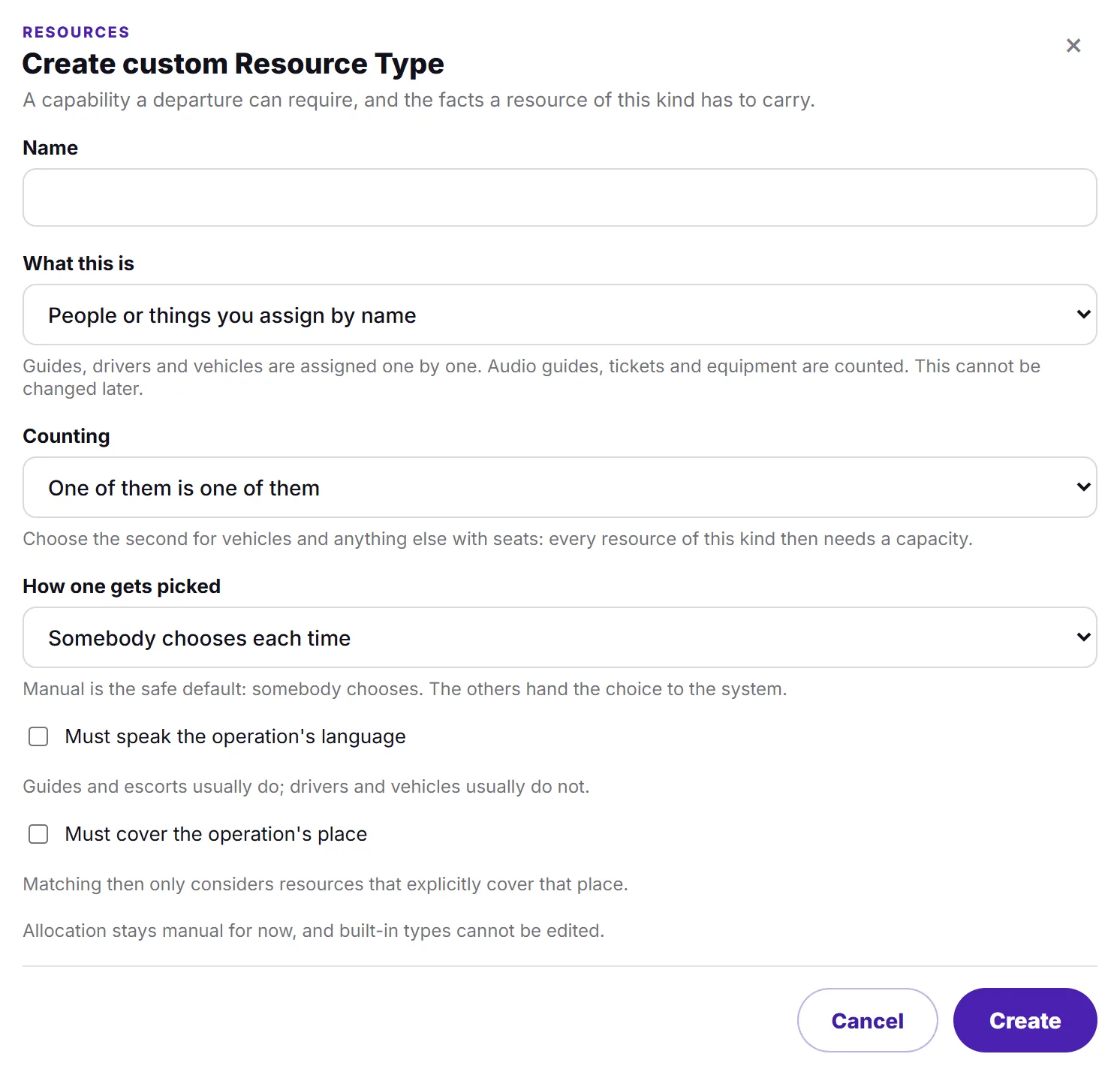
Create the type
- Step 1:
In the sidebar, open Resources → Manage Resources.
- Step 2:
In Your roster, click + Type at the end of the filters. Create custom Resource Type opens.
- Step 3:
Type a Name that no other type uses, including the built-in ones.
- Step 4:
In What this is, choose People or things you assign by name or Stock you count out. This choice can't be changed later.
- Step 5:
Set the rule that appears:
- for people or vehicles, in Counting choose Each one holds a number of people for anything with seats: every resource of the type will then need a capacity. Leave How one gets picked on Somebody chooses each time: for now, assignment stays manual;
- for stock, in How many are needed choose One per passenger or A fixed number per departure.
- Step 6:
If needed, tick Must speak the operation's language and Must cover the operation's place.
- Step 7:
Click Create. The window closes and the type appears as a new filter, with its count.
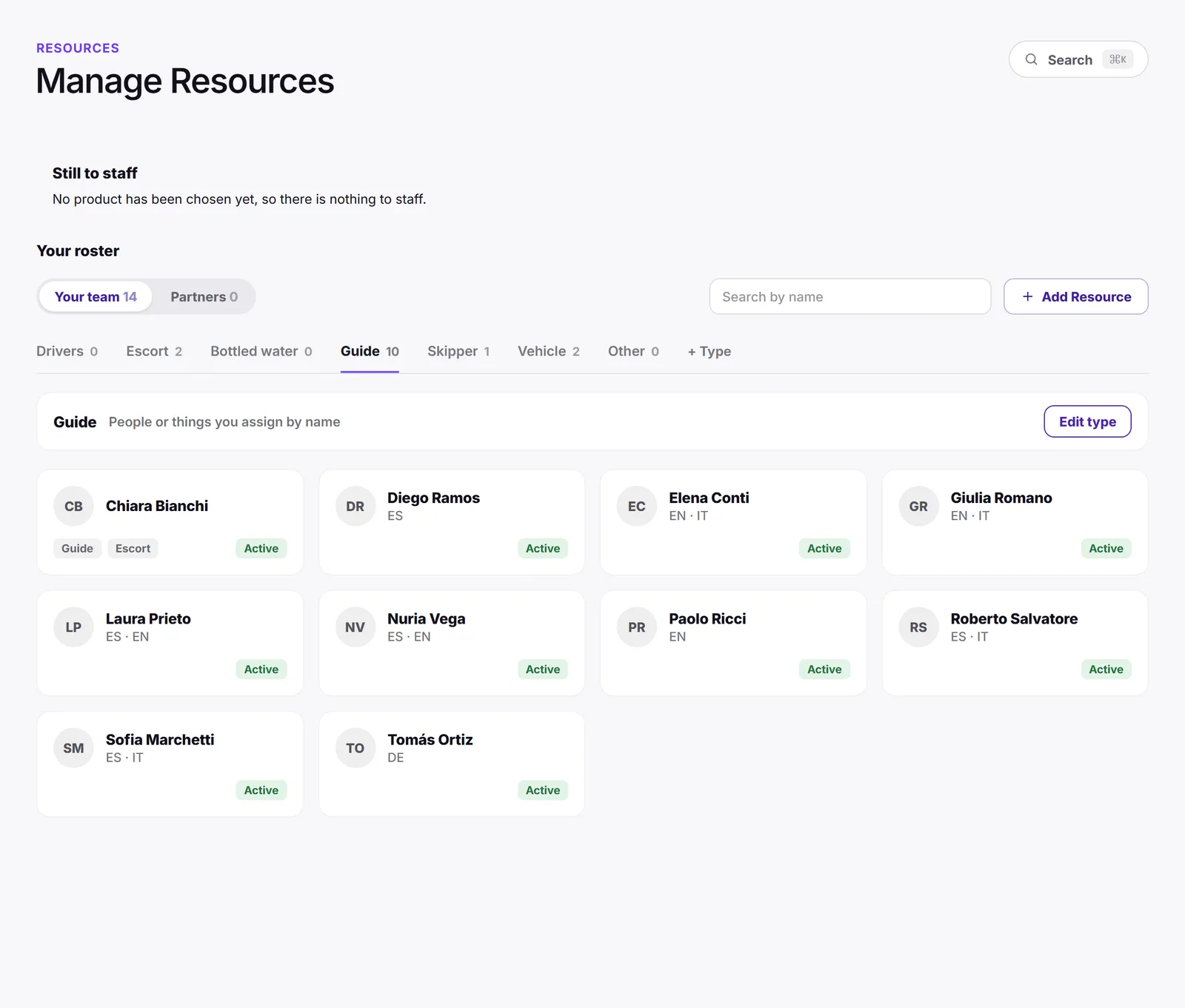
A new type also appears among the boxes of What this resource can do when you add a resource. Stock is marked "#": see Add a resource and its contact details (Add a resource and its contact details).
Change the type later
- Step 1:
Click the type's filter. Its name and Edit type appear above the cards.
- Step 2:
Click Edit type. Edit Resource Type opens.
- Step 3:
Change what you need and click Save. The window closes.
- Step 4:
For a type you assign by name, you can also choose the Coverage policy, that is, how the resources share out a departure's passengers. Then click Save coverage: "Saved" appears.
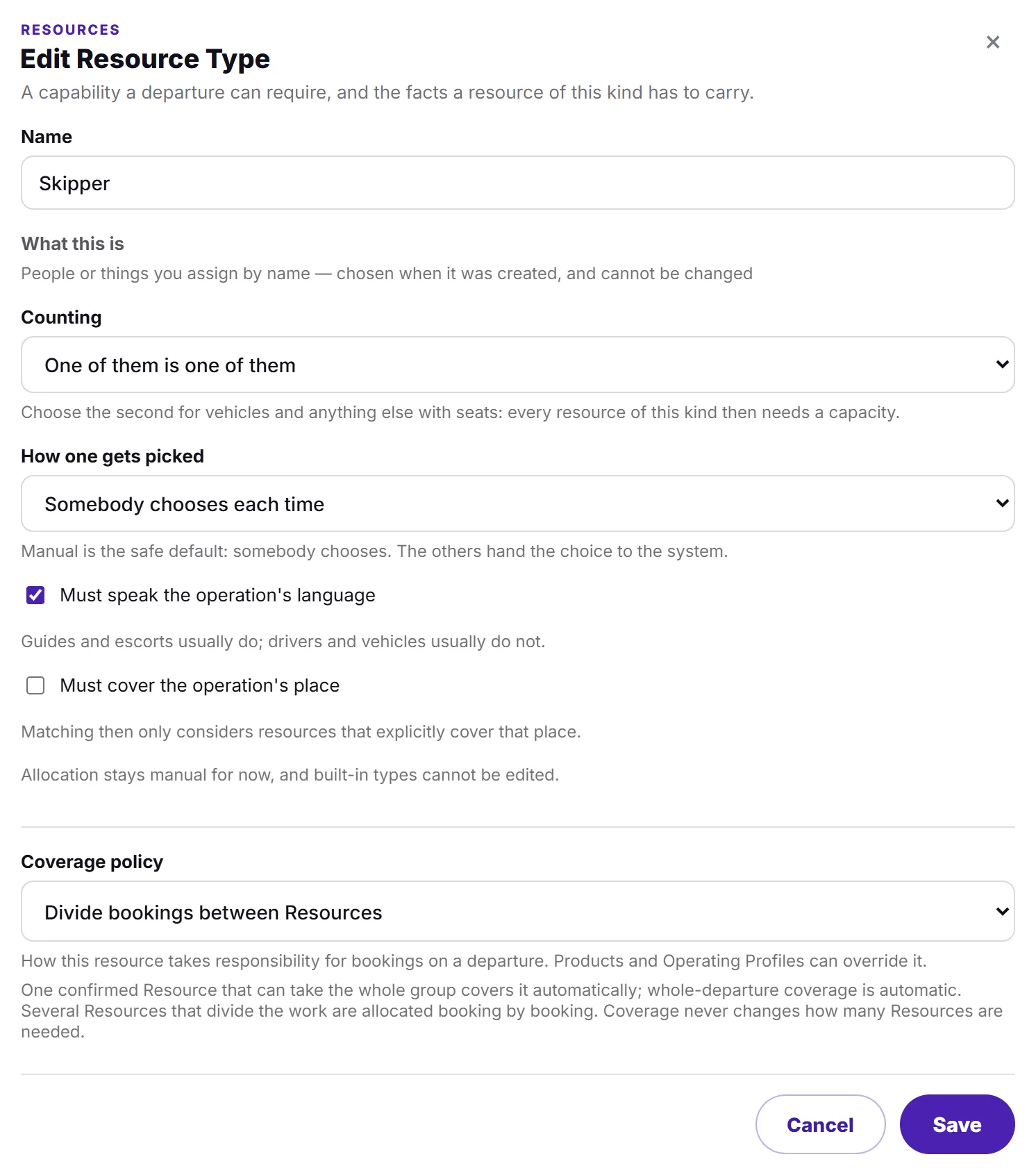
A new type starts on Divide bookings between Resources. The other choices are Divide participants between Resources and Cover the whole departure.
What happens next
For departures to ask for the new type, add it to the operating profile. In the profile's Resources tab, click the button with the type's name, for example "+ Skipper". See Set up an operating profile (Set up an operating profile).
If something goes wrong
- You see "Check these details — nothing was saved": usually another type already has that name. Choose another and click Create again.
- You see "This changed while you had it open…": reload the page, reopen the type and make the change again.
- You can't find Edit type above a filter: built-in types can't be edited. No type can be deleted.