
Counted stock is an item you count instead of assigning it by name: audio guides, tickets, equipment. Each departure takes as many as its profile asks for. For example, with one audio guide per passenger, the 09:15 Vatican Museums departure with 23 passengers takes 23.
Before you start
You need a type created with Stock you count out. In How many are needed you chose One per passenger or A fixed number per departure. See Create a custom resource type (Create a custom resource type).
Add a set of your own
- Step 1:
In the sidebar, open Resources → Manage Resources and leave Your team on.
- Step 2:
Click Add Resource.
- Step 3:
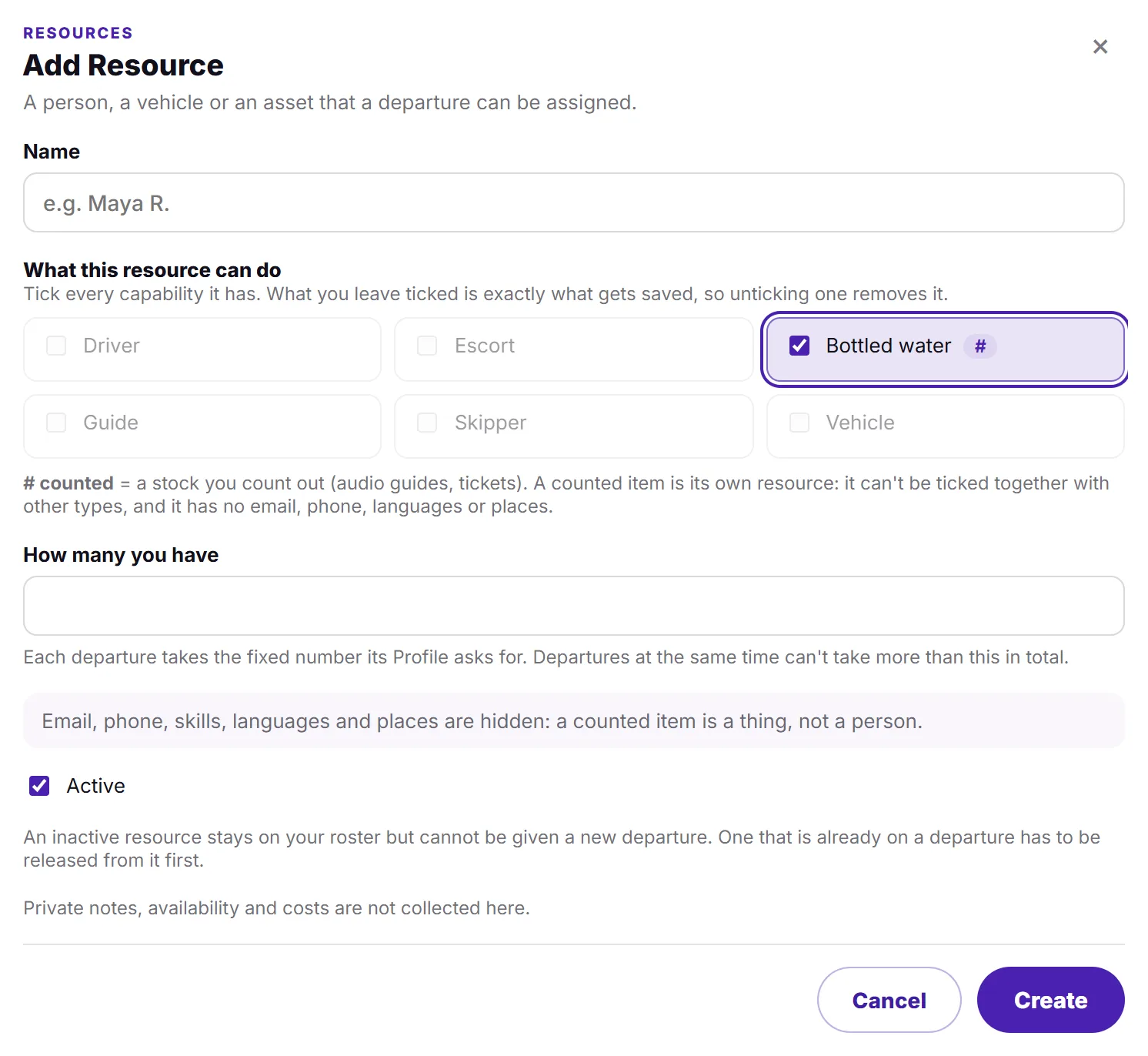
Type the set's Name, for example "Audio guides A".
- Step 4:
In What this resource can do, tick the type marked "#". The other boxes turn grey: a set has only one type.
- Step 5:
Email, phone, skills, languages and places disappear. Type How many you have, for example 40.
- Step 6:
Click Create. The set's card shows "40 units".
How a departure uses it
- Step 1:
Open the departure and its Resources and groups tab. The type has its own panel, for example with "23 needed · not assigned".
- Step 2:
Click Assign. The list shows your sets under Your team and the partners who supply the item.
- Step 3:
Click the set. The panel shows "23 of 23 · your team" and "Follows the Pax".
With the per-passenger rule, the number follows the passengers: if more arrive, the departure takes more. Departures at the same time share the set's units. A set without enough free units appears under Can't be assigned now.
Once you have at least one active set of a type, a departure that needs that type stays Not ready until you assign it a set or a partner.
The "Over stock" blocker
If passengers arrive after the assignment, the units in use at the same time can exceed the set's units. The departure becomes Not ready and the blocker shows in two places:
- in the Recap tab, under What still needs doing, as "Over stock: 42/40";
- in Control Room, in the Alerts panel, as "Audio guides A · Over stock: 42/40".
To resolve it, on the set's panel click Change and choose a bigger set or a partner. If you have more in storage, update How many you have on the set.
Partners who supply stock
A partner can also supply a counted item: tick it in What they supply. In the Assign list, the partner shows how many it covers and its daily maximum. The partner gets the quantity in its daily list. See Work with partners (Work with partners).
If something goes wrong
- The box of the type marked "#" is grey: you have already ticked another type. Untick it, because a set has only one type.
- The set appears under Can't be assigned now with "how many you have is not set": open the set and type How many you have.