
A partner is a company you buy services from: vehicles, drivers, guides or items you count, like audio guides. You assign it to departures like one of your own resources. Every day it gets a single email with the list of all its services.
For example, the 11:45 Vatican Museums departure doesn't have a vehicle yet: you can give it to a coach company.
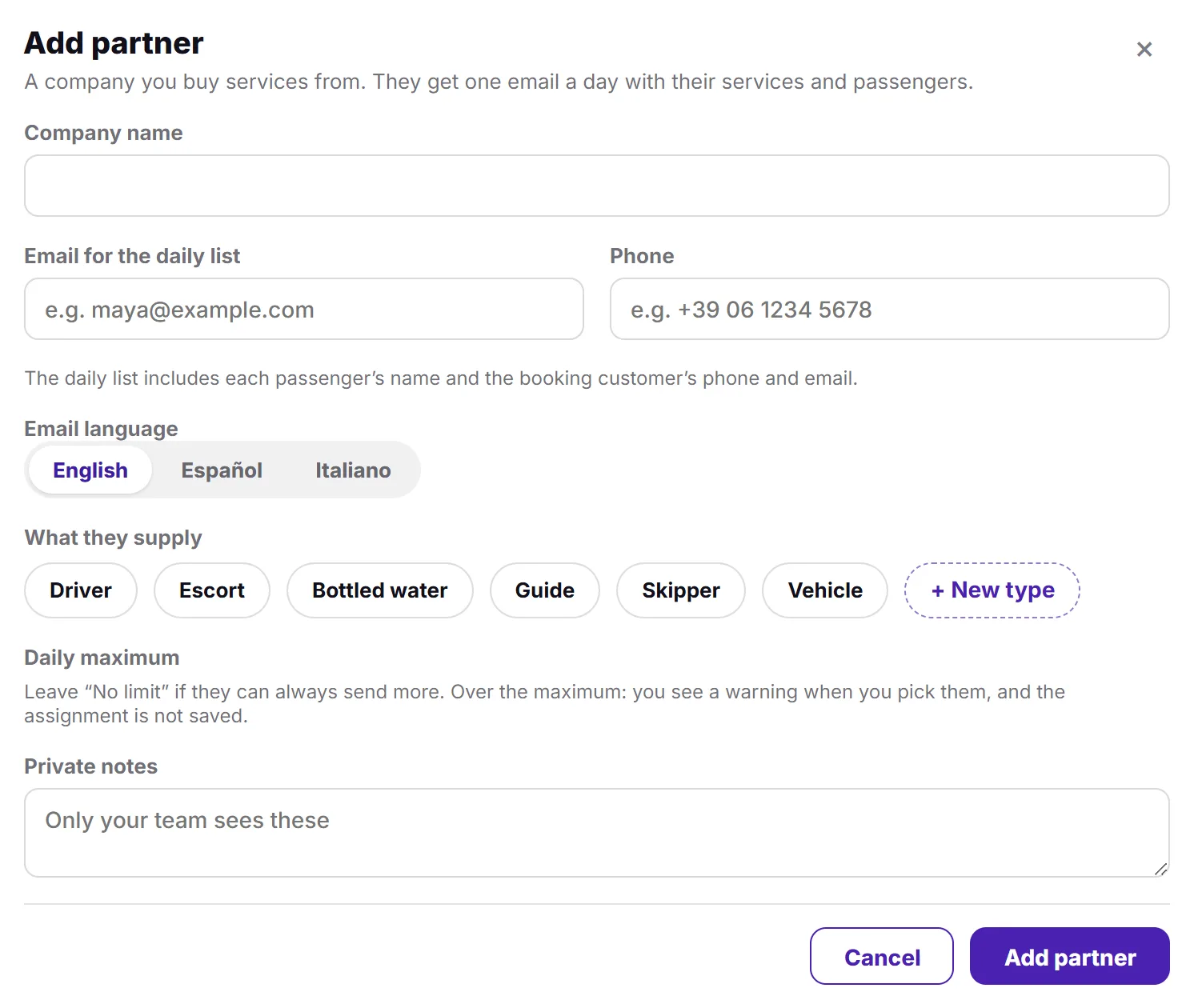
Add a partner
- Step 1:
In the sidebar, open Resources → Manage Resources and click Partners.
- Step 2:
Click Add partner. The window of the same name opens.
- Step 3:
Type the Company name, the Email for the daily list and the Phone.
- Step 4:
In Email language, choose the language in which the partner gets the list.
- Step 5:
In What they supply, click every type the company supplies. If you choose a vehicle, also type the Seats per vehicle: they are used to check that the group fits.
- Step 6:
In Daily maximum, choose, for each type, No limit or a number, for example "3 a day".
- Step 7:
If you like, type Private notes, which only your team sees. Then click Add partner.
Assign the partner to a departure
- Step 1:
Open the departure and click the requirement's button, for example Assign vehicle.
- Step 2:
In the list, the partner is marked Partner, with the day's count, for example "1 of 3 used that day".
- Step 3:
Click the partner's name. The choice is saved immediately.
Partners don't block times: the same partner can cover several departures at the same time.
In the Resources and groups tab, the partner's panel has two sections:
- Vehicle and driver: vehicle, license plate, driver and the driver's phone, saved with Save details;
- Note for the partner: type the note and click Save note. The partner reads it in its list from the next send.
The partner's email and link
- In the Email and sends tab, the partner appears under "Who gets it". Click Preview and send to check the email and send it.
- The list holds the name of every passenger, and the phone and email of the booking's customer.
- The email has a link to the list page, the .xlsx file and the vehicle form. It works until 23:59 on the day after the list's date: the row shows "Link works until …".
- To stop it sooner, click Revoke link and confirm with Revoke link. The partner stays assigned. To send it a new link, click Preview and send again.
If something goes wrong
- The partner is under Can't be assigned now with "daily maximum reached (3 of 3)": you can't assign it. Choose another partner, or open the partner in the Partners tab and raise the Daily maximum.
- You see "Over seats": there are more people in the vehicle than seats, counting guides and escorts. Change the vehicle or move some bookings.
- The note doesn't save: it must stay under 500 characters.