
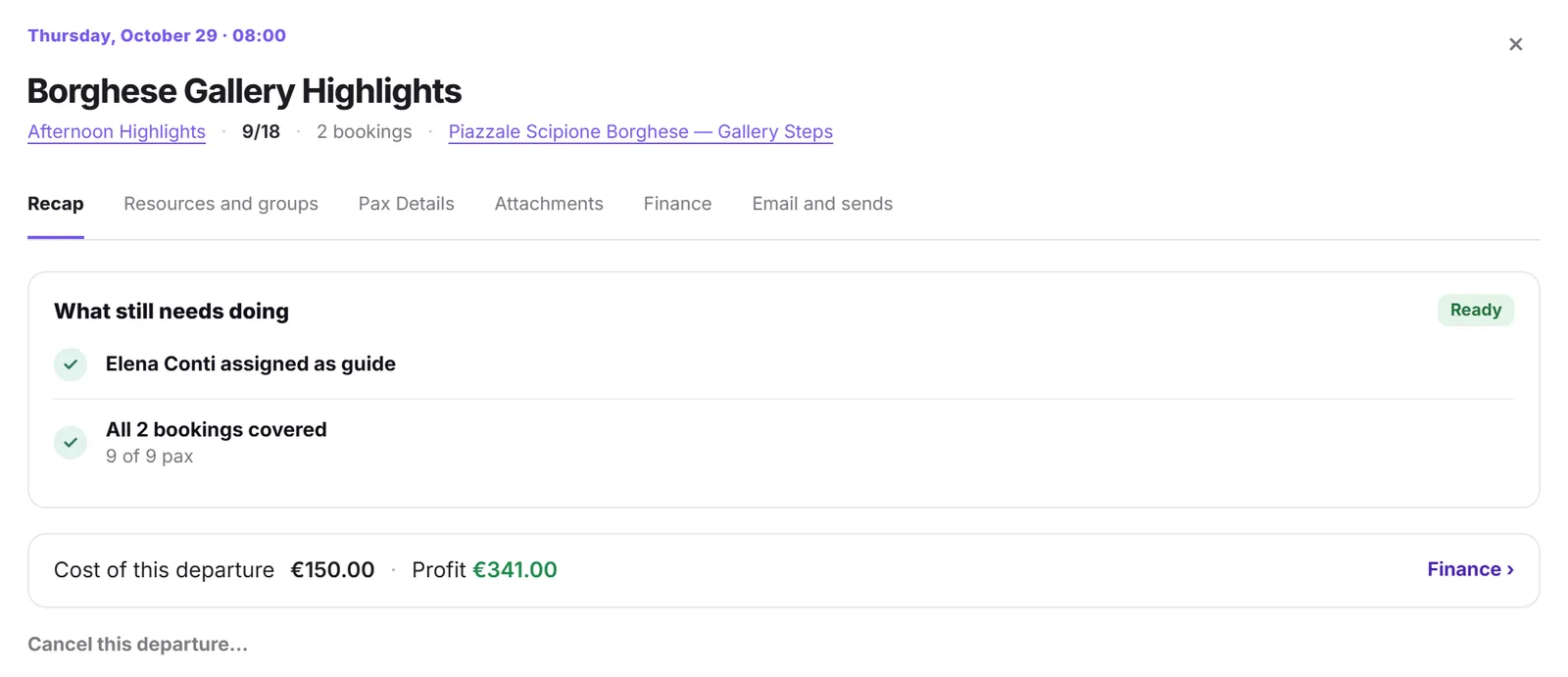
A departure is Ready when nothing is left to prepare. There's no button to mark it: TourOperate works it out automatically, every time you assign someone or a booking changes.
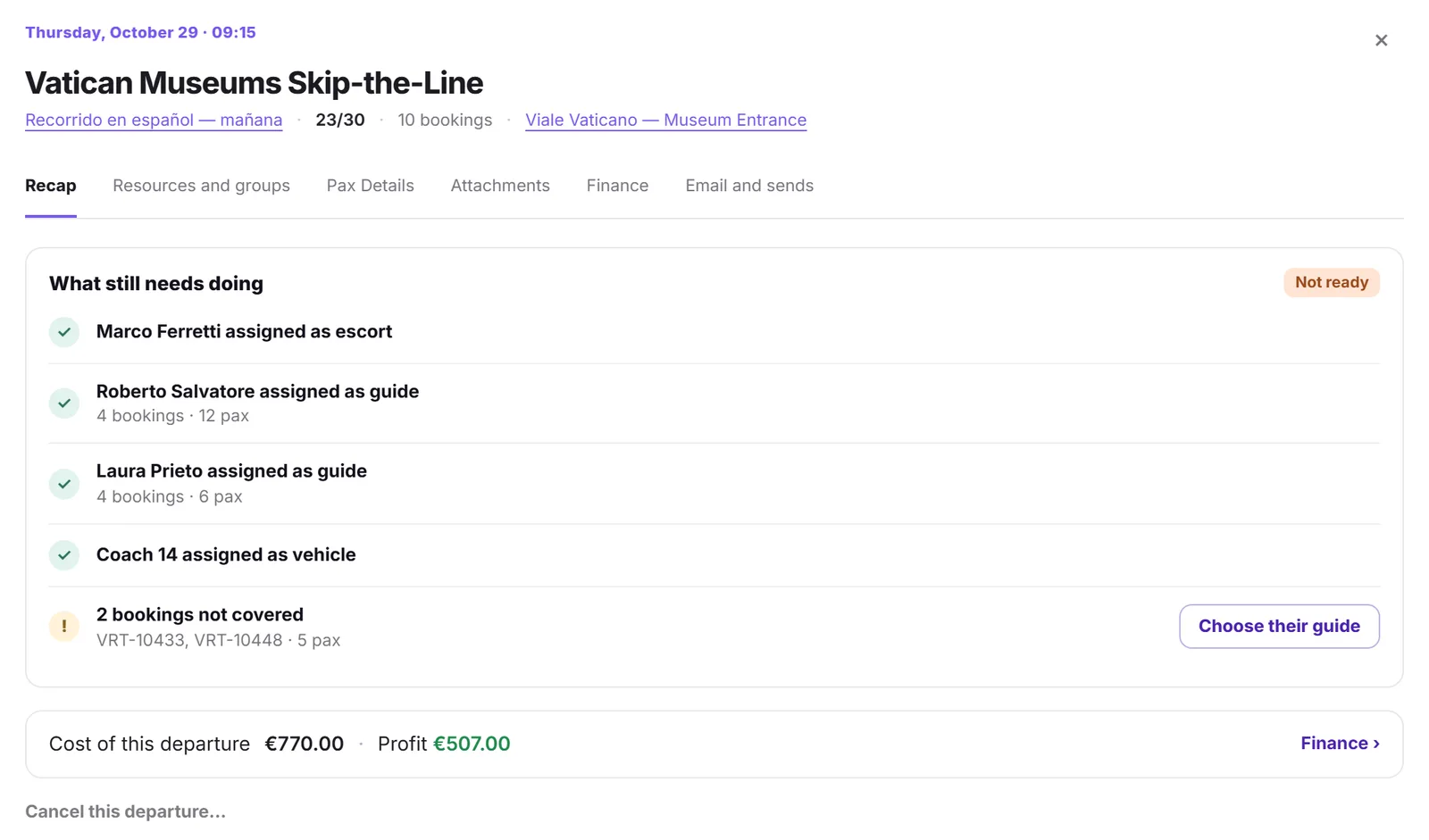
At 09:15, for example, the Vatican Museums departure has its guides, escort and vehicle. Only "2 bookings not covered" is left. When those two bookings have a guide, the departure becomes Ready.
Where you see it
- In Control Room, each row ends with Ready or Not ready.
- In the departure window, on the Recap tab, next to What still needs doing. Items with ✓ are in place; those with ! need your attention.
Steps
- Step 1:
Open the departure. The window opens on Recap.
- Step 2:
Read the items with a ! in What still needs doing.
- Step 3:
If a resource is missing, click the button on its line, for example Assign guide. See Assign guides, vehicles and escorts (Assign guides, vehicles and escorts).
- Step 4:
If some bookings aren't covered, click Choose their guide. See Split bookings between guides (Split bookings between guides).
- Step 5:
For the other items, follow the button or the explanation below the line. See What still needs doing and alerts: what each item means (What still needs doing and alerts: what each item means).
- Step 6:
When no ! is left, Ready appears next to the title. The row in Control Room becomes Ready too.
What happens next
- Warnings, with Mark as checked, don't change the status: it's still worth reading them.
- If something changes later, for example a new booking comes in, the departure goes back to Not ready automatically.
- When every assigned staff member has received their email, the departure becomes Done in Control Room. At the top you read, for example, "1 done of 5".
Cancel a departure
- Step 1:
In Recap, click Cancel this departure….
- Step 2:
Type the reason in the "Cancellation reason" field. It's required.
- Step 3:
Click Cancel departure.
There's no going back: the departure can no longer be changed. Cancelling only changes TourOperate, not Bókun. If someone had already received their email, What still needs doing reminds you: let them know yourself.
Update the departure's profile
Usually a change to the operating profile reaches the departures automatically. Sometimes it can't, for example because the email has already gone out. Then What still needs doing shows "This departure uses an older version of its Profile".
- Step 1:
Click Review change. Read what changes for each resource and what stays the same.
- Step 2:
Click Apply to this departure, or Not now.
If something goes wrong
- You're looking for a button to mark the departure ready: there isn't one. The status depends only on What still needs doing.
- An item has no button: below it there's an explanation, for example a detail to check in Bókun. See What still needs doing and alerts: what each item means.
- There's no status next to the title: TourOperate hasn't finished reading the departure yet. Wait a few seconds or open it again.